Tasks & scheduling
Tasks turn repeatable Kaizen work into a durable definition that runs without an open browser.
Tasks are off in this release. Kaizen is holding them for a later release while their unattended workflows finish qualification, so by default you will not see Tasks in the rail or the mobile tab bar, a saved Tasks link opens Home, and chat will not offer to create or run tasks. Tasks you created earlier are kept, not deleted, and reappear if Tasks are turned on again. A run that was still waiting or in progress when Tasks were turned off can pick up again at that point, so check your task history when they return.
If your administrator turns Tasks on, they still appear only while Kamiwaza reports the complete delegated-workload identity and authorization graph ready. A local setting alone cannot open the feature, and a partially healthy platform does not expose the rail or direct route. Existing definitions and history remain stored during an authority outage; no new schedule, dispatch, retry, background job, or execution starts until readiness recovers.
The rest of this page describes the Tasks workflow available when your administrator has turned Tasks on and the platform reports the complete contract ready. An administrator can turn Tasks off again at any time.
Two ways to manage tasks
- Open Tasks for the guided visual workflow, or
- ask any chat agent to preview, create, list, inspect, update, test, activate, pause, resume, run now, or delete your tasks — and to inspect, cancel, or retry runs.
Chat uses the same task service, owner binding, worker queue, audit trail, and capability checks as the Tasks screen. An agent cannot choose another owner or bypass task policy.
Write requests normally: "Show my active tasks", or "Create a draft called Monday update using my Weekly summary prompt." Kaizen asks for missing details rather than requiring you to know a task API or cron syntax. Lists, details, previews, and run results appear as plain tables in the chat canvas — they are not saved artifacts.
Continue substantial chat work
If work is exhaustive, long-running, restart-sensitive, or too large for the current answer, any chat agent can continue it as a one-time background job. The agent decides from the request; you do not have to author a saved Prompt or schedule. Chat immediately shows a durable job card, while Tasks provides the complete run trace, output conversation, usage, diagnosis, and controls.
Ordinary background work executes once through the same agent runtime. When complete Library coverage is required, the job can add a folder, Collection, or Document corpus and use checkpointed partitions. Stop cancels either kind. Corpus jobs can also pause at a safe checkpoint and resume the same run.
Background jobs started from a chat keep that chat's processing path in their private Task thread. Tasks started directly use their own processing path.
The agent can attach a Goal that states the outcome, constraints, and completion checks. Open the Task to see that Goal, its latest safe checkpoint, and whether the run is waiting for your input. When input is needed, answer in chat using the exact pending request; Kaizen adds your accepted message to the private Task thread and resumes the same run.
Create a bounded Agent loop
Ask an agent to create a loop for recurring checks such as “check this every hour until the verification passes.” A loop is separate from a one-time background job. It requires a Goal, a cadence, an end time, and a maximum occurrence count. It always skips missed and overlapping occurrences and never replays a backlog after downtime.
The new loop starts as a draft. Run its side-effect-safe test and complete the same activation as any other Task before turning it on. The selected Agent version is pinned. Each attempt rechecks your current access and authority, and the loop stops when the Goal completes, its end time passes, or its occurrence limit is reached.
If you have a prompt canvas open, you can ask Kaizen to schedule that prompt directly. Kaizen resolves the open canvas to its runnable saved Prompt for you; you do not need to copy an ID or distinguish a prompt from its editable artifact. Ordinary phrases such as "once kaizenrrow" or "every day" are translated into the exact schedule contract. If a required detail is invalid, Kaizen identifies the field to correct instead of returning only a generic task error.
An unqualified question such as "What tasks have I created?" means your Kaizen Tasks. You do not need to say "Kaizen Tasks" or name a task system. Kaizen searches another task service only when you name that external service.
Create a draft
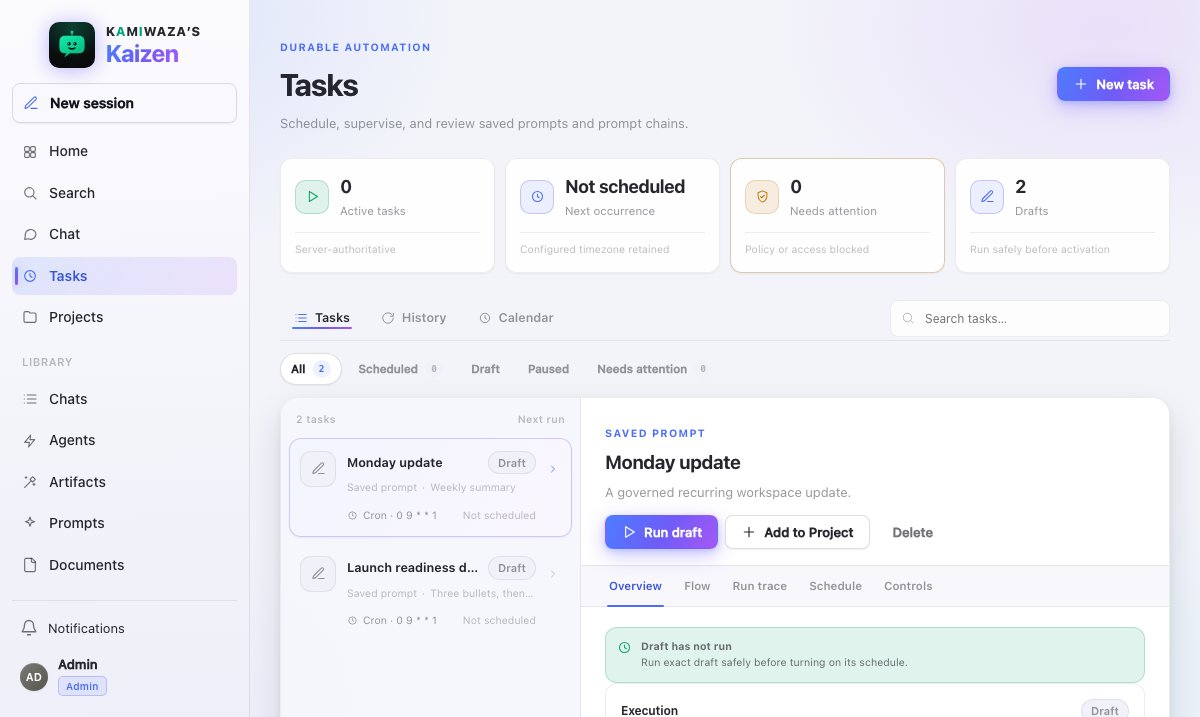
Open Tasks, choose New task, then:
- Choose what the task should do — Run a saved prompt, or Work through a document set. A choice you cannot use yet is disabled and says why, for example when you have no saved Prompts. Then choose the saved Prompt, confirm the name Kaizen filled in from your choice, and optionally choose a Project to keep related work together. This does not share the task with Project members.
- Choose a schedule — Once, Repeating, or Custom. Repeating offers common hourly, daily, and weekly choices. One-time schedules use Month, Day, Year, and Time fields in server time (UTC). Missed-run, overlap, and retry settings stay under Advanced options unless you need them.
- Choose tool approvals. A task can use your saved default, ask when a tool needs confirmation, ask before every write, stay read-only, or never ask. Choosing Never ask requires you to accept the warning first. When a run needs your confirmation it pauses and shows Task paused in chat; approving there resumes the same run.
- Review the exact target version, next three occurrences, destination, effective limits, tools, approval behavior, and worker availability.
- Select Create draft.
Work through a document set
Choose Work through a document set when the job must examine every admitted source rather than only the best-ranked search results. Choose a Library folder, a Collection, or one or more ready Documents; then choose graph or record output and the member-visible source and partition limits. Review shows bounded source counts and exclusions without loading the source list into your browser.
Corpus Tasks are suitable for ontology construction, classification, reconciliation, and other work larger than one model context. They always offer vendor-neutral JSON Lines and GraphML output. The run snapshots selector membership, reads exact document revisions in bounded partitions, and checks your current access again before every source read.
If a partition answer cannot be turned into records, Kaizen gives that partition another attempt within its run limit. Check the run's coverage before using a partial result. A failed run with no successful partitions does not create an empty graph Artifact; open its diagnosis before trying again.
Opening the graph Artifact loads the complete graph from your run in pages, reporting progress as it fills in. Your access is checked again on every page: records you can no longer see are counted and stated, never quietly dropped. The graph cannot show records while the run is unavailable. Move through the graph with the arrow keys and inspect the focused node with Enter. Use Previous and Next in the inspector to reach every relationship of a selected node.
Corpus runs always use their own private task thread. They cannot publish into a shared conversation or Project; the completed owner Artifact can be reviewed and shared separately under the Library's normal permissions.
The review is server-authoritative. Kaizen resolves the target under your current Library access and pins the exact version before the draft is created, so later edits to a prompt never silently change what the task does. A task does not store a browser credential or anyone else's authority.
Test before you turn it on
Every draft must complete a durable, side-effect-safe test before activation. The test enters the same shared runtime as normal agent and prompt work, but unattended writes and sensitive actions stay denied, and output stays isolated from production destinations.
On a deployment that has no platform identity of its own, the test calls the model with your signed-in session. Kaizen seals that session, encrypted, for the one test run you started, and the run spends it as it starts, so it cannot be used again, by another task, or by anyone else. If your session ends before the test finishes, or the test is restarted after it began, it can stop before it is done; sign in again and test the draft once more.
When the release gate opens, Turn on task is your consent. Kaizen asks Kamiwaza to authorize the exact task revision, targets, destinations, limits, credential bindings, and approval requirements, and approves that request with your signed-in session, so no separate consent page opens. Kamiwaza derives your identity from that session and returns only an opaque grant reference; Kaizen never stores your browser credential. If Kamiwaza cannot record the approval, the draft stays inactive and Tasks says so; choose Turn on task again later.
Select the draft and choose Run draft. The inspector shows queued, running, succeeded, or a safe terminal status from the durable worker record. Turn on task appears only when successful evidence matches the current task revision and the exact preview.
Changing the target, inputs, destination, schedule, limits, or approval behavior makes old test evidence stale. Preview and test again.
General Agent scheduling is not available. The only recurring Agent path is a server-created, Goal-backed, bounded loop from chat. Members and model payloads cannot turn an ordinary Agent target into a schedule.
Inspect and manage
The Tasks list is private to you and supports server-backed search and status filters.
Above the list, one band states what is true of your workspace right now: how many tasks are running, how many are scheduled, how many need attention, and which run comes next. A count of zero is left out rather than shown as an empty tile. Each count is also a filter, so selecting Needs attention narrows the list to exactly the tasks it counted, and selecting the next run opens the task that owns it. The band stays in place in History and Calendar, and a count selected there returns you to the Tasks list.
Each row carries the task's own lifecycle control: Pause while it is scheduled, Resume while it is paused. Pausing turns the schedule off without deleting anything, and resuming turns it back on, including for the Goal-backed Agent loops created from chat. The same two controls remain in the task's own panel.
Select a task to inspect:
If a saved target is later deleted or your access is removed, the task remains visible so you can pause or delete it. Kaizen labels the target unavailable, withholds its content and grants, and disables testing, activation, manual runs, and resume until current access exists again. One unavailable target does not prevent the rest of your Tasks list from loading.
| Tab | What it shows |
|---|---|
| Overview | Goal, target version, destination, last run, and recent runs |
| Output | What the run produced, and the conversation and version behind it |
| Flow | The immutable authored structure, with live step status |
| Run trace | Reconnectable, durable event order and retained history |
| Schedule | Server UTC trigger, policies, next three occurrences |
| Controls | Owner binding, effective caps, approval mode, tool grants |
Task summaries never invent run results, spend, or calendar occurrences. When a projection is unavailable, Kaizen says so.
Output answers "what did this run produce?" without hunting for a conversation. It shows the answer the run wrote, any artifacts it created with the exact version, a link that opens the run's own conversation, and the target version that produced them. A run that produced nothing says so, a run that failed shows the same safe diagnosis you see elsewhere, and a run whose conversation is no longer retained says that instead of pretending the run was empty. Nobody but you can open it.
Run draft and Run now open the exact run in Flow automatically. The active step pulses, completed steps stay green, a failed step stays red. Run trace follows the same run and reconnects from its last durable position after tab changes, navigation, or refresh. When Flow reaches a terminal result, every duration-free event in Run trace settles to Complete as well; an historical start event never remains labeled In progress after the run finishes, and no Flow node remains painted as running.
A long step keeps showing that it is working. While its model is still thinking or writing, the step's Run trace row reads In progress · active with the time of its latest activity, updated about every ten seconds. A time that stops moving means the step has gone quiet.
Find patterns in History
Open History to compare durable outcomes two ways:
- the grid puts each task on a row and occurrences on time columns, so repeated failures, blocks, skips, and slow runs stand out;
- the feed gives each outcome's exact time, Test run label, safe diagnosis, affected scope, and an Open run trace link.
Search and outcome filters run on the server and stay in the URL, so a grid cell or feed link opens the same task and run after a refresh. Test runs stay visibly labeled and never masquerade as production work.
When a run fails
Failure diagnosis uses plain categories instead of raw provider or tool errors. Read the safe cause and affected scope first, then choose the recovery the trace offers:
- retry a safely retryable terminal run,
- restore missing access,
- change the bounded definition and test it again, or
- leave a policy block in place.
Troubleshoot with Kaizen opens a new chat with only an authorized, opaque run context reference. It does not copy prompts, outputs, credentials, or hidden errors into the URL.
An ambiguous external effect is terminal and is never replayed automatically.
Read Calendar times
Calendar groups committed and predicted occurrences by configured local date. Every entry retains its IANA timezone, UTC offset, daylight-saving fold, and exact timezone-data version.
- Committed means the database recorded the occurrence decision.
- Predicted is a bounded server preview and can change after a schedule edit or timezone-data rollout.
Use the displayed offset and fold when investigating daylight-saving changes. Your browser's locale affects presentation only; it never decides when a task runs.
Cancellation
Cancellation is durable first. Queued and retry-wait work becomes cancelled immediately. Running work receives the cancellation signal, loses side-effect authority, and can no longer publish a stale success.
If platform readiness is lost, Kaizen applies the same closure before scheduling, queueing, claiming, model use, credential use, and resource effects. You can still open retained definitions and history while an administrator restores the dependency; recovery never silently repeats an outcome that might already have happened.
A run that is still waiting for the platform to authorize it after an hour ends as expired, and you get a missed-run notification if you turned those on. Nothing starts later from a request you made long ago. Run the task again once the platform is available.
Pause and resume a corpus run
The Corpus job panel shows phase, checkpoint sequence, partition progress, coverage, record count, and ready downloads. Coverage & provenance pages the manifest and lets you trace an exact node, edge, or record ID to its currently authorized source revision and locator.
Choose Pause job to stop scheduling new partitions. A running partition finishes at its cooperative checkpoint, then the run becomes paused. Resume job continues the same run, manifest, and committed output; it does not mint a replacement run or repeat committed partitions. Cancel is terminal. A safe retry is offered only when durable evidence proves replay cannot duplicate an ambiguous external effect.
Notifications
Task completion, failure, block, missed-work, approval-required, and input-required events land in your inbox. See Notifications.
When a tool needs permission, the run becomes Awaiting approval. Kaizen releases both its task worker lease and its sandbox worker before showing the request, so a task left waiting cannot consume either concurrency pool. Approve once to queue a fresh fenced attempt, or deny to close the run as policy blocked. The approval is bound to that run, agent, tool, and argument digest and is consumed by one matching execution.
Limits and conflicts
Definitions, list pages, input parameters, references, schedules, runtime, tokens, cost, retries, and worker concurrency are all bounded server-side. See Limits & quotas.
If another session edits a task first, Kaizen reports a version conflict — close and reopen the task before retrying. Reusing an idempotency key with different content is rejected rather than creating ambiguous duplicate work.
Deleting
Deleting a task stops future scheduling and management through the live definition, and cancels any of its runs that are still waiting or running. Required occurrence, run, trace, notification, and audit history remains under your deployment's retention policy. Deletion does not promise immediate erasure of evidence.
Security properties of scheduled execution are covered in Task automation security.