Prompts
If you find yourself typing the same kind of request repeatedly, save it as a Prompt. A Prompt can be one well-written request or a reusable flow with several steps.
Prompts are optional. If you do not see Prompts in the rail, your deployment has not enabled them.
Create a Prompt
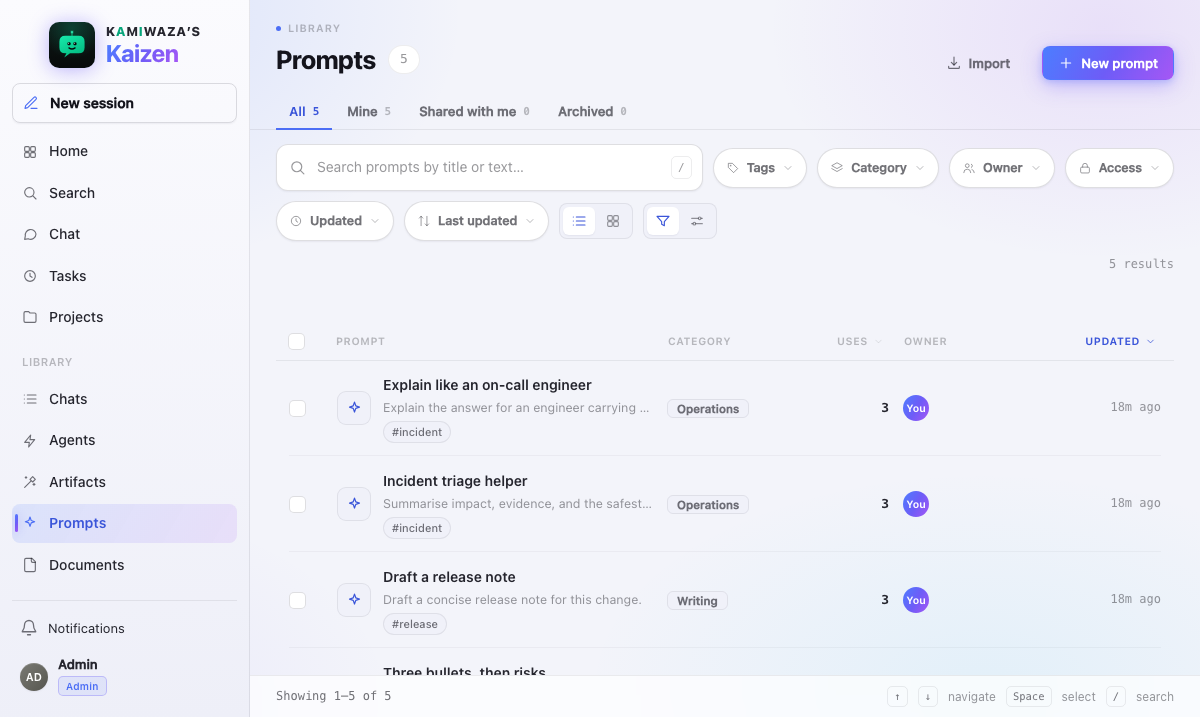
Open Prompts in the rail and choose New prompt. Write the request you want to reuse, replace Untitled prompt with a useful name, and save it.
Good Prompts to save include:
- requests you have refined and want to keep exactly;
- team conventions, such as a required summary format;
- multi-step work you run often enough to automate;
- instructions with sources or tools you do not want to select again each time.
For a one-off question, use Chat directly. Prompts earn their keep through repetition.
Add resources with @
While writing, type @ to open the resource finder at your cursor. Keep typing
any part of a name or description to narrow the list. Matching is fuzzy, so a
few non-adjacent characters are usually enough. Use the arrow keys to move,
Enter to insert, and Escape to close the finder.
Typing is the only filter. The finder searches the complete resource catalog without a separate type or category mode.
The finder groups what you can currently use:
| Group | What selecting it does |
|---|---|
| Prompts | Reuses another saved Prompt in this step. |
| Documents | Grounds the step in one of your Documents. |
| Tools | Attaches that exact Tool to this step. |
| Connectors | Attaches that connected source and its available read Tools to this step. |
| Agents | Assigns work to the selected Agent where the Prompt structure allows it. |
| Collections | Grounds the step in a curated set of sources. |
| Artifacts | Reuses an existing Artifact in this step. |
In a step heading, @ shows Agents only because that position configures who
runs the step. In ordinary Prompt text it shows the full resource finder. Type
/ when you want structural choices such as a new step, a fill-in field, a
comment, or a flow link.
The Tool and Connector groups show the catalog available to you, even when the
selected Agent does not include an item in its usual defaults. Choosing one
explicitly attaches it to the current step; it does not edit the Agent or add it
to later steps. In Code, the attachment is visible as a {{tool:…}} or
{{connector:…}} token, so the Prompt's configuration travels with its source.
An attachment can extend an Agent's defaults, but it cannot exceed that Agent's risk level or your permissions. Kaizen checks the current Tool or Connector, administrator policy, and your access again on every validation and run. An unavailable attachment blocks the Prompt before any step starts, and an action may still require your confirmation.
Use a Prompt
Select a saved Prompt to open it in Chat with Prompt Builder selected. Kaizen opens Flow first so you can inspect the authored path before running it. Choose Code when you want to edit the source directly. The Prompt opens in a new chat, so it never inherits an earlier unsent message, and choosing New session afterwards leaves the canvas and Prompt Builder behind.
An older one-step Prompt becomes a one-step flow the first time you open its canvas, without losing the text you saved. When Prompt Builder gives the canvas a better name, the Prompts library uses that name too.
Choose Run beside the Flow input to start. Preview offers the same action as a shortcut: it opens Flow and begins the run. Artifacts produced by a Prompt appear below the live Flow and enter your Artifacts library immediately.
Configure multiple steps
Add another step when one request is doing too many distinct jobs. Each step has a heading, an Agent, and instructions. Flow links describe how the previous result reaches the next step—for example, in sequence, as parallel branches, or through a bounded decision.
The Flow canvas is a read-only picture of what you wrote. It keeps steps in their authored positions while a run adds live status: the active step pulses, completed steps stay green, and a failed step stays red. Runtime status never rewrites your design.
Before relying on a multi-step Prompt you can:
- validate it to check that its structure and current resources resolve;
- debug it to step through visible intermediate output;
- run it to execute the whole flow and stream one result.
The live connection only watches a run. Navigating away, refreshing, or a temporary network interruption does not stop healthy work. When you return, Kaizen reconnects and fills in missed events. Use Stop when you intend to cancel the work.
Versions
Editing a Prompt creates a new version, and earlier versions stay available. You can restore a previous version if an edit turns out worse than what it replaced.
Versions also protect scheduled work where your deployment has Tasks turned on: a Task pins the exact Prompt version it was created against, so later improvements never silently change what that Task does. See Tasks & scheduling.
Review run history
Choose Run history on a multi-step Prompt to review previous runs. Each entry shows when it ran, its Prompt version, whether it was interactive or run by a Task, and its final status. Interactive entries include the recorded final output and ordered activity record.
A scheduled, manually started, or test run created by Tasks appears in the same history. Opening it takes you to the authoritative Task trace and output chat, where retries, controls, usage, diagnostics, and Artifacts remain available.
An attended run does not notify you about work you are already watching. If you leave it running, completion produces one notification for the whole Prompt, not one notification per internal step or tool.
Choose the right shape
- Use a one-step Prompt when a single well-crafted request does the job.
- Add steps when the work is genuinely multi-stage and worth repeating.
- Create a Task when the Prompt should also run on a schedule without you.
Link a Prompt to a Project
Prompts can be linked into a Project like any other Library item — a pointer, not a copy. A new link follows your Share new documents with this Project preference, so unless you have turned that off, the Project's other active members can open and run that Prompt. They cannot edit it, delete it, or share it further, and it stays in your own Library exactly as it was. Use Make private on the item in the Project to withdraw the grant, and Share with Project to restore it; only you, as the member who filed it, see those controls.