Using agents
An agent is a reusable assistant with its own persona, tools, and knowledge scope. Every Search and every Chat in Kaizen is powered by one, whether or not you ever pick one deliberately.
What an agent bundles
- a persona — instructions and tone that shape how it responds,
- a set of tools it is allowed to use,
- a knowledge scope — what it retrieves over, for example limited to certain collections,
- a mode — whether it belongs to the Search or the Chat surface.
Reading the Agents list
The list shows the columns that tell one agent apart from another. When a column is the same for every agent you can see — all of them Chat agents, say, or all Kaizen-protected — it moves to a single line above the list rather than repeating down every row, and the room it frees goes to each agent's description. The fact is still on the page; it is stated once instead of nine times.
Mode scoping
Agents are mode-scoped. A Search agent never appears in the Chat picker and a Chat agent never appears in the Search picker. The underlying matching pipeline is shared, so the two surfaces can behave differently without creating competing search authorities.
Each surface has its own default:
- the Search default is tuned for retrieval — how many results, which knowledge to consider;
- the Chat default is tuned for a tight, well-cited answer and searches more sparingly per turn.
Browse and pick
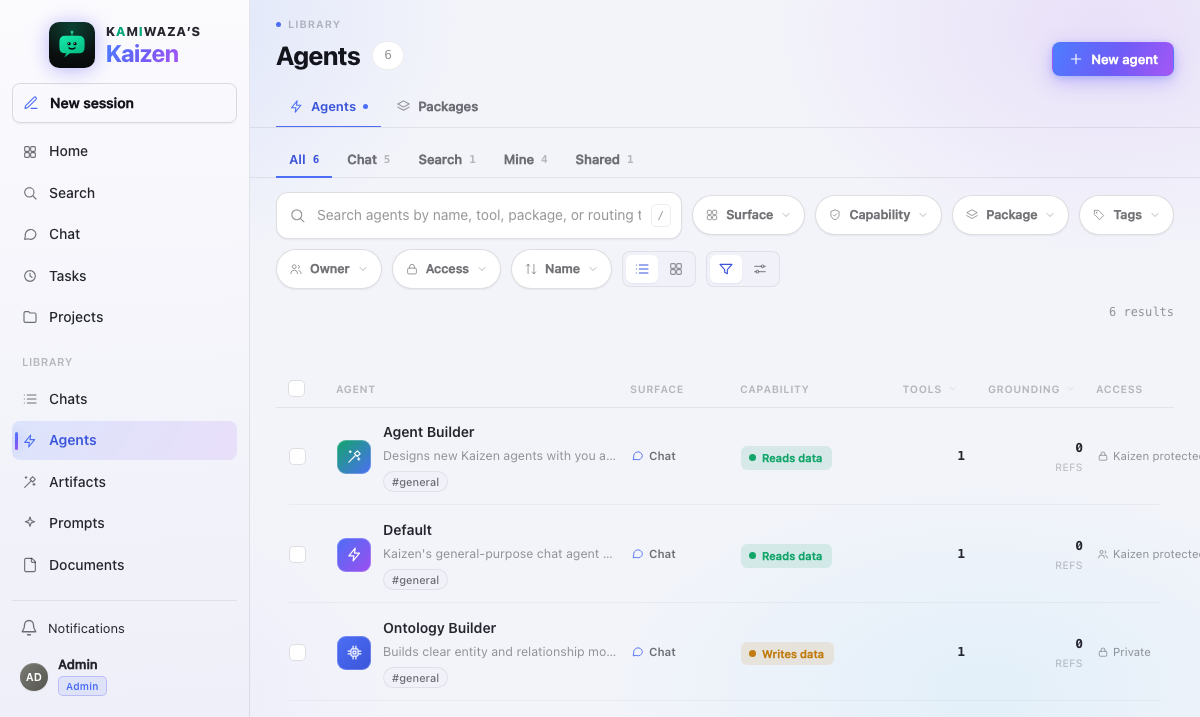
Open Agents in the rail to see what is available: Kaizen's defaults, agents you have built, and agents others have shared with you. To use one, pick it from the agent picker on the Search or Chat surface.
The Discover view shows what you can use. Activity shows how agents are being used. Manage covers the ones you own.
Build an ontology from your knowledge
Choose Ontology Builder when you want an ontology, taxonomy, entity model, or relationship graph from material you can retrieve in Kaizen. Tell it the source boundary and what questions the graph should answer; attach a document when you want that document to be the focus.
The agent searches only knowledge you can access, links every accepted entity and relationship back to supporting evidence, and saves the result as an Ontology artifact. It marks the artifact Needs review when sources are missing, terms are ambiguous, or a requested question is not yet answerable.
The artifact is the deliverable. This workflow does not publish knowledge to a separate graph store or create durable graph memory. You can keep using Kaizen's normal search and document tools to refine the same artifact.
This interactive lane uses ranked evidence and is intentionally bounded; it does not prove that every item in a folder or Collection was examined. For large or exhaustive work, keep using Chat. The agent can promote the request to the same general one-time background Task available to every agent, adding a Library corpus only when complete coverage is required. The resulting graph artifact is a bounded preview, with the complete result available as JSON Lines or GraphML.
Build and maintain a demo
Kamiwaza staff can choose Demo Builder to turn approved documents, prior work, and stated requirements into a reproducible demo plan. It creates two versioned Artifacts: a JSON Demo Blueprint for the desired state and a Markdown presenter runbook for setup, timing, fallbacks, reset, and cleanup. After every create or update, the runbook records the exact Blueprint Artifact root, immutable version, and content digest so you can tell which plan it describes.
Tell the agent when you are updating an existing demo. Select the earlier Blueprint and runbook, including ones saved from a prior chat or linked Project. Demo Builder revises those same Artifacts so their history remains in one place; it asks you to choose if several possible versions match instead of starting a duplicate.
The Blueprint distinguishes retrieved evidence, your requirements, generated proposals, and unresolved decisions. Ranked search is useful for discovery but does not prove every item in a source was examined. When a live Kamiwaza or managed object-source capability is not available to you, the agent leaves an operator plan and labels the gap instead of claiming it seeded a model, imported data, or changed an environment.
For supported live work, ask it to inspect first and show a preview. The direct Kamiwaza tool can ensure a workroom, exact catalog extension, model download, model deployment, catalog dataset, or Kaizen agent. It can revise the description or labels of one exact compatible workroom only when that update is shown in the preview. Ask it to apply using the exact environment and preview digests you just reviewed, then approve the resulting generic review card. Kamiwaza changes only after the one-shot approval passes Kaizen's current-member and live-environment checks. If the environment or requested state changes, preview again. Internal application and model addresses are resolved for you and are not placed in the Blueprint. The tool does not delete resources, configure connector secrets, import skill files, create conversations, or transfer S3/R2 objects. Unsupported setup, import, smoke, reset, and cleanup steps remain explicit operator work or require a separately managed capability.
You can opt into specialists such as Agent Builder, Package Creator, Web Researcher, and Ontology Builder for bounded parts of an interactive build. Demo Builder remains responsible for reconciling their work into the Blueprint. A one-time background Task runs one selected agent; it does not silently become a durable multi-agent coordinator.
If a specialist needs a capability package that does not exist yet, Agent Builder can save the unfinished agent as a draft and hand the package work to Package Creator. The draft remains recoverable across later chats. After an administrator approves the exact package, ask Agent Builder to resume the draft; it rechecks the package and adds the grant without discarding the persona, knowledge scope, or other fields you already reviewed. An unresolved, rejected, changed, or unavailable package keeps the agent draft blocked rather than silently producing a weaker demo specialist.
Rehearse from the runbook before presenting. Ready means current evidence and live receipts satisfy every required check. Otherwise the agent reports Needs review, names the gap, and tells you when older readiness evidence has expired. A screenshot or generated claim is not proof of current state.
Demo Builder may also prepare a draft handoff for a separate UAT review. It does not run UAT, approve evidence, decide pass or fail, or change a release gate.
What an agent can and cannot do
An agent's tools are a ceiling, not a wish. If an agent was not granted
run_code, no prompt can make it run code.
Just as importantly, an agent acting for you can only see and do what you could see and do yourself. Its permissions are yours, resolved per tool call — never the agent author's, and never the deployment's.
Every eligible chat agent additionally receives shared infrastructure capabilities rather than per-agent implementations: conversation-history search, the available-agents roster, owner-scoped task management, and native promotion of substantial work to a one-time background Task. Their scope, timeouts, result limits, and access checks apply uniformly.
Agents can also answer capability questions from live connector, Core API, and MCP catalogs. Core surfaces include authenticated operations for applications, skills, workrooms, Context Service, and future platform services. If an agent has no grant for a dynamic surface, the catalog reports an empty inventory; it does not grant the missing operations or load that surface's data.
The composer's Add to chat tool picker deliberately lists every tool an administrator has enabled for the deployment, not only the ones your active agent is granted — a shared room needs the same full picker no matter which agent is currently selected. If you check a tool the active agent was not granted, the picker marks it as not granted to that agent: it stays checked, but the run will not actually use it. Switching to an agent that does hold the grant, or asking an administrator to widen it, is what changes what a turn can use — checking the box in the picker never does.
Set an agent's approval default
Open a Chat agent in Agents and use Tool approvals to choose when that agent should pause before writes. Use my default inherits your setting from Settings → Preferences. This is your own default for that agent; it does not change the shared agent definition or another member's behavior.
You can still choose a different mode for one conversation from the controls beside its composer. The agent's tools remain a ceiling in every mode, and Never ask does not turn on a tool the agent was not granted.
Sharing scopes
An agent you create is private to you the moment it exists. From there:
| Scope | Who can use it | Who can set it |
|---|---|---|
| Private | Only you | You |
| Direct share | Named members, by email, with use / duplicate / edit access | You |
| All members | Everyone in the deployment | Admin only |
Shared agents behave like a shared resource: people you have shared with see your latest version.
Versions
Editing an agent appends a version rather than overwriting it. You can review the history, compare versions, and restore an earlier one. Changes apply the next time the agent is used.
Use agents shared with you
An agent someone shared with you runs under your identity and permissions. You are not borrowing their access — you are borrowing their configuration. If the agent is scoped to a collection you cannot see, you will get fewer results than the author does, not an error that reveals what you are missing.
Build your own
For the visual, immediate path, use Agent Studio. You do not need anyone's approval to create a private agent there. See Building agents in Agent Studio.
Where conversational authoring is enabled, Agent Builder is a separate Chat specialist. It saves a governed proposal, can reload or patch that draft in a later turn, and submits it for administrator review only after you confirm. Use Package Creator when the proposed agent needs a new reviewed capability or instruction package. These proposal tools cannot edit Kaizen's protected built-in agents, including Demo Builder.
Let agents work together
An agent can hand work to another agent, but only through its effective roster: your per-agent choices plus any small source-reviewed defaults on a protected built-in agent. Default, for example, can route a public technical comparison through Web Researcher while retaining responsibility for the final answer. You can narrow that roster for one prompt from the composer. See Sub-agents & delegation.