Search
Search is the fastest way to find a source or rediscover prior work. It uses one matching pipeline for connected knowledge, your documents, Projects, and eligible chat history, then hands you safe links to the originals.
Open search
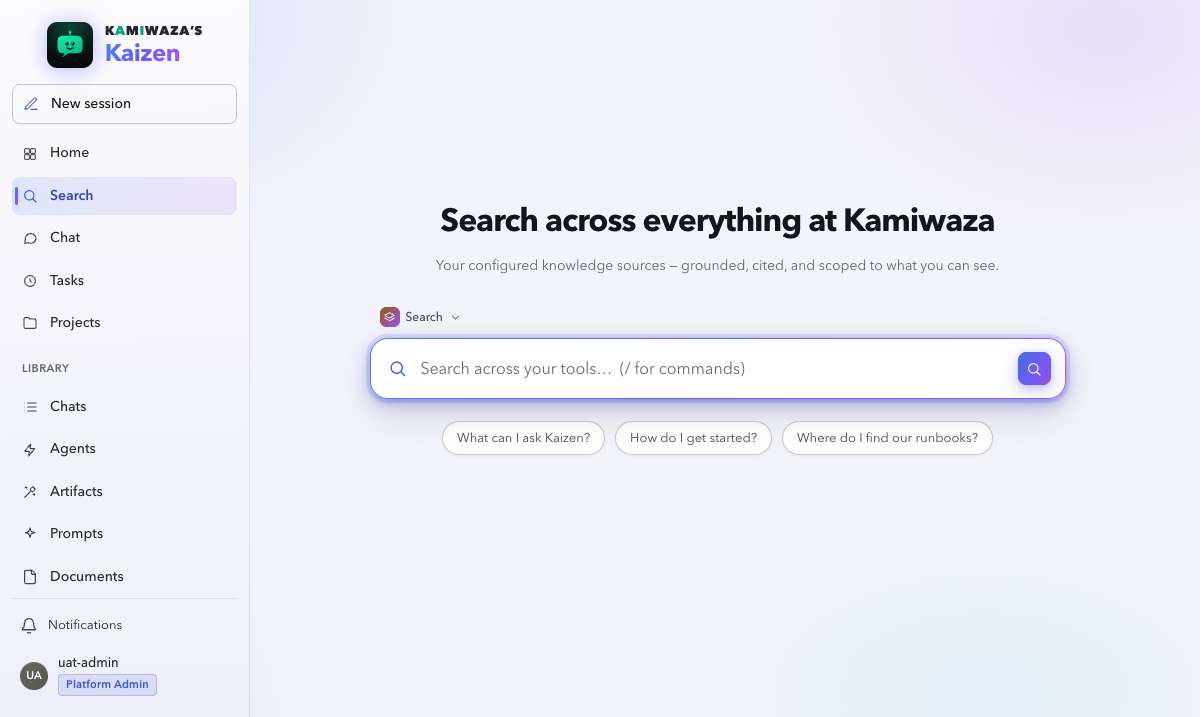
Click Search in the rail. From the keyboard, press ⌘K (Ctrl-K on Windows and Linux) to open the command palette and choose Search. Type a question or a few keywords and press Enter.
Search opens the way Chat does. With no query the screen is a single centered block: the heading, one line of purpose, the scope control, the search bar, and the suggestion chips. The bar is focused already, so you can type straight away. Submitting a query replaces that block with your results, and the bar moves to the bottom of the screen where Chat keeps its composer, so your next query starts from the same place.
The suggestion chips come from document titles you can currently access, including synced repository knowledge from connected sources. Individual issues, pull requests, discussions, findings, and compliance records stay out of the chip list so it offers knowledge topics rather than a ticket feed.
Read the results
Results come back as source cards, ranked by relevance. Each card shows:
- the title and the source it came from,
- a snippet with the matching passage,
- its result type and, when you can currently see it, its Project and access path.
A long title or source path is shortened to fit the card rather than stretching it across the page; open the result to read the complete value.
Document results are evidence. Chat and Project results are navigation: their snippets help you recognize prior work, but they are not automatically treated as factual sources for a new answer.
Find a prior discussion
Search covers the complete indexed history you can currently receive — not just chat titles or recently loaded rows. Exact terms work well for names and error strings. Semantic matching can also find a discussion whose wording was different, such as searching for "database launch checklist" when the chat said "migration runbook."
Use the filters to narrow by:
- result type (documents, chats, or Projects),
- one or more Projects,
- owner, direct-share, or Project access,
- Project and chat tags,
- created date, and
- active or archived state.
Selecting a chat result rechecks your access and opens the matching position in that conversation.
Results are checked, not remembered
Search cards are disposable projections. If a grant was revoked, a Project was deleted, or the matching passage is no longer eligible, an old result or copied link does not preserve access — Kaizen shows a generic unavailable state without revealing what changed.
If one search provider is temporarily unavailable, Search labels the result set as partial and keeps the authorized results the others returned, rather than failing the whole query.
Preview a source
Click a document card to open a preview panel. You can read the surrounding context, confirm it is what you need, and copy from it — without leaving Kaizen or losing your result list. Chat and Project cards open their existing Kaizen location instead.
Write better queries
- Natural language works. "how do I reset my laptop password" is fine; you do not need keywords only.
- Use distinctive terms. Exact names, error strings, and codes let the keyword half of retrieval lock on.
- Do not over-specify. Kaizen also matches on meaning, so a shorter, clearer question often beats a long one.
- Rephrase if needed. If the first results miss, try asking a different way — semantic matching keys off how you frame it.
Tune with a Search agent
The search surface is powered by a Search agent. The default is tuned for general use, but you can switch agents from the picker to change retrieval behavior — for example how many results come back, or whether search is scoped to specific knowledge.
A selected scope always narrows your current access. It never grants access.
When to use Chat instead
If you want an answer synthesized across evidence rather than the sources themselves, use Chat. Chat agents can run the same authorized history discovery to answer "where did we discuss this?" with safe links — prior-chat matches stay navigation, while document evidence keeps its normal citation rules.
See Search vs Chat.