Projects
Projects are workspaces for organizing related chats and Library items. A Project points to each existing item — it does not copy the item or change its owner. A document pointer can add a Project-only read path without making the source public everywhere.
Create and reopen a Project
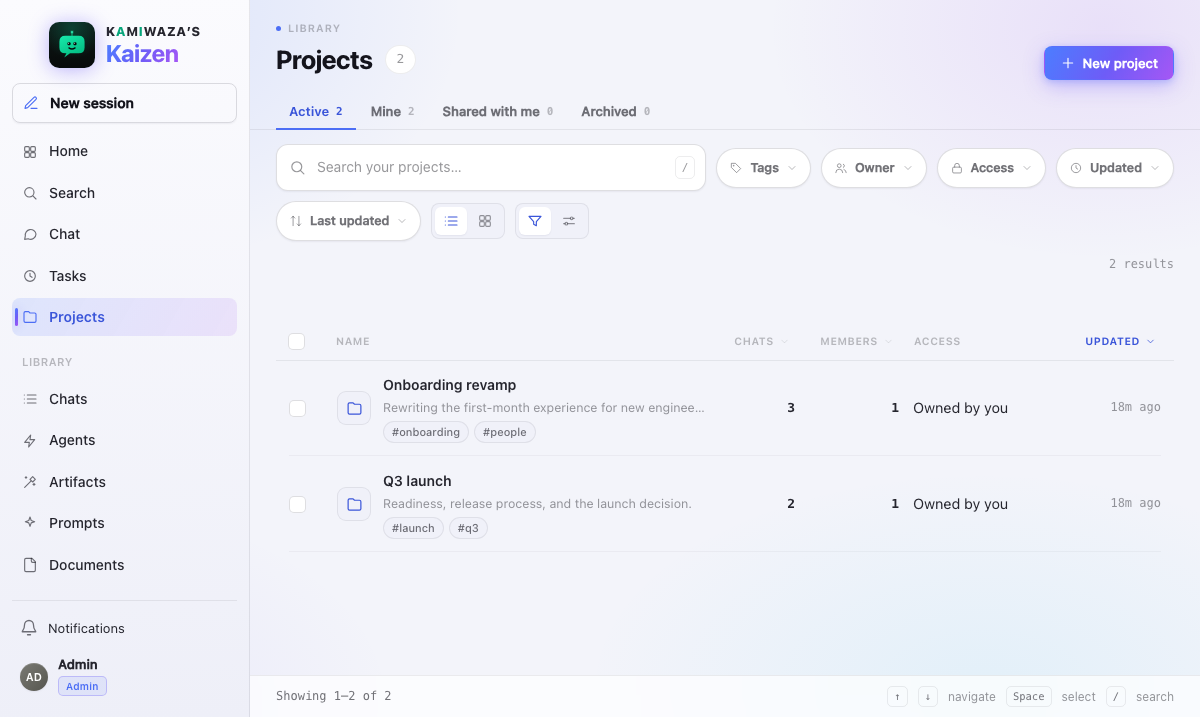
- Open Projects in the rail.
- Choose New project, then add a name, optional description, and tags.
- Open the Project from the library whenever you want to return to its chats.
Renaming, retagging, archiving, or restoring a Project keeps the same stable Project ID and the same chat IDs. Archived Projects remain available from the Archived view, but new chats cannot be added until the Project is restored.
Start or add a chat
Choose New chat inside a Project to start a normal chat and group it there immediately.
To organize an existing chat you own or that has been shared directly with you:
- in a Project, choose Add Library items, open Chats, then select an eligible chat; or
- in Chats, open the chat's actions and choose Add or move to Project.
A chat can point to only one Project at a time. Adding a chat that already belongs to another Project moves its pointer atomically — it never creates a second conversation. You must be a collaborator in the destination Project; read-only access is not enough to move or add content. Kaizen shows the access-path impact before you confirm.
Link any Library item
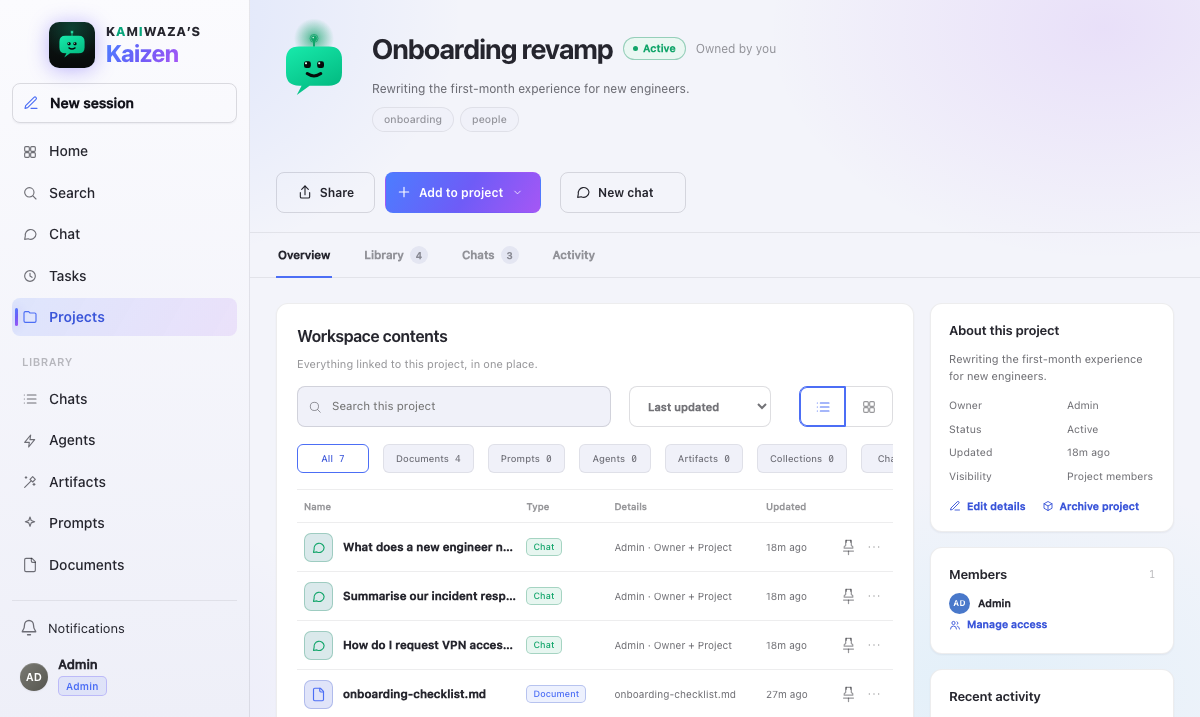
Open the actions for an Agent, Artifact, Prompt, Document, Collection, or Task and choose Add to Project. You can also choose a Project while creating a Task.
You can also just ask the assistant in chat: "add that document to the Q3 launch project". It looks up your projects, matches the name you used, links the item and tells you where it went. It links only into projects you can write to, and only items you can already open; anything else it declines and the project is unchanged. It cannot create, rename, delete or share a project, and a link it makes is the same pointer yours is — no copy, no change of owner, no widened access.
Inside a Project, Add Library items is the single picker for Chats, Documents, Artifacts, Prompts, Collections, Agents, and Tasks. There is no separate Project-only chat picker. The picker keeps one stable footprint while you switch kinds or filter results; longer result sets scroll inside it instead of resizing the dialog.
Select an active Project you own or can edit. Read-only shared Projects and archived Projects are not destinations. The original item stays in its Library and can be linked from more than one Project.
Opening a Document or Artifact from a Project shows its preview pane over the current Project. It does not send the underlying page to Documents or Artifacts. Actions inside the pane, such as Use in Chat, are separate and may deliberately take you to the chosen workflow.
New links are Shared with Project by default, whatever kind they are — documents, prompts, and artifacts alike. That gives active Project members read-only access to the linked item while leaving its normal Library visibility unchanged. The member who added it can open its actions and choose Make private; the item then remains in the Project for that member and disappears for members who have no other access path. Choosing Share with Project restores the scoped read path.
Only the member who filed an item sees that control. To everyone else the row is read-only: a shared document can be found in Search, added to your own chat, and asked about with cited passages; a shared prompt can be opened and run; a shared artifact can be opened and read. None of them can be edited, renamed, published, deleted, or re-shared. A project-granted artifact is labelled Shared with Project in your Artifacts list so it is never mistaken for one of your own.
Open the Project's Settings tab to change Share new documents with this Project for your own future links. This preference starts on, belongs only to you, and does not revise items already linked. Each existing item keeps its own Shared or Private choice.
Deleting or unlinking the source still removes the Project view. A Project grant never transfers ownership or grants rename, edit, publish, delete, or global Library access. Collaborators can remove a link without deleting or changing the original.
Tasks remain owner-only. Adding a Task helps its owner organize work; it does not make the Task visible or manageable by other Project members.
Drag an item into a Project
Pin a Project so it appears under Projects in the left rail, then drag an artifact, document, or collection from its Library and drop it on that Project. The rail highlights the Project while you hold the item over it and then states what was added and where. With nothing pinned, drop the item on Projects itself and choose the destination in the picker that opens.
The drop respects the same access rules as the action. Only an active Project you own or can edit lights up and accepts the item; a read-only or archived Project refuses it and your Library is left untouched. If the item cannot be added, the rail says so instead of quietly dropping the request. Dragging a file from your computer into Kaizen still uploads it, and is never mistaken for moving a Library item.
Invite named Project members
Project owners can open Share Project and enter a member's verified email. The invitation appears as a highlighted Project in the recipient's Projects library, with Accept invitation in the row. Invitations expire after seven days. A safe retry never reveals the one-time token again; Resend rotates it and makes the previous link unusable. Only the named account in the same workroom can accept.
Project membership is a base access path to every chat currently linked to the Project. Active members receive each linked room's retained messages, artifacts, citations, and linked resources.
Agent turns still resolve models, tools, packages, credentials, approvals, and private sandboxes for the initiating participant only. A Project item's read path does not lend the contributor's credentials or expose unrelated private Library items.
Chat cards and open chats show the current viewer's safe access explanation: Owner, Direct, Project, or an additive combination. A direct-only recipient never receives the containing Project's ID, name, tags, or other metadata.
Direct sharing stays independent
Project placement never disables Share. A chat owner can use the direct named-recipient flow before or after a link, move, unlink, archive, or Project deletion. Removing a Project pointer never revokes a surviving direct share, and vice versa.
Unlink or move without losing anything
Choose Unlink in Project detail, or Unlink from Project in Chats, to remove only the pointer. The chat returns to the ungrouped Chats library with its title, journal, resources, artifacts, retention state, owner, and direct grants unchanged.
Deleting a Project is also non-destructive. The confirmation shows current membership and pointer counts and states that zero chats, direct grants, and chat-owned resources will be deleted. Afterwards the old Project link shows a safe unavailable state, and every surviving chat is reachable from Chats with its original ID.
Leave or remove a member
A collaborator can open Members & access and leave. The owner can remove a collaborator. Kaizen first shows how many chats owned by the departing member will be unlinked; the membership change and those pointer removals commit together.
Leaving or removal does not delete a chat, revoke any direct grant, remove chat-owned resources, or change a chat ID. If a direct grant remains, the member keeps direct access. If Project membership was their final path, future transcript, live, write, resource, search, and export access ends.
The owner cannot leave until a separately reviewed ownership-transfer model exists.
Projects, Chats, Search, and recent-chat navigation all refresh after the change, so an old card, result, or deep link cannot preserve a removed access path.
Finding things
The Projects and Chats libraries use the same interaction pattern for search, saved views, facets, sorting, keyboard focus, and direct-open behavior. Full conversation-history and Project-aware discovery lives in the main Search screen rather than a separate Project search page.
Operators: the flag dependency order and rollback procedure for Projects and history search are in Feature flags & rollout.