Chat
Chat is where you get an actual answer. The assistant retrieves the right sources, reasons over them, and writes a response with citations — and it can use tools to do real work along the way.
Start a session
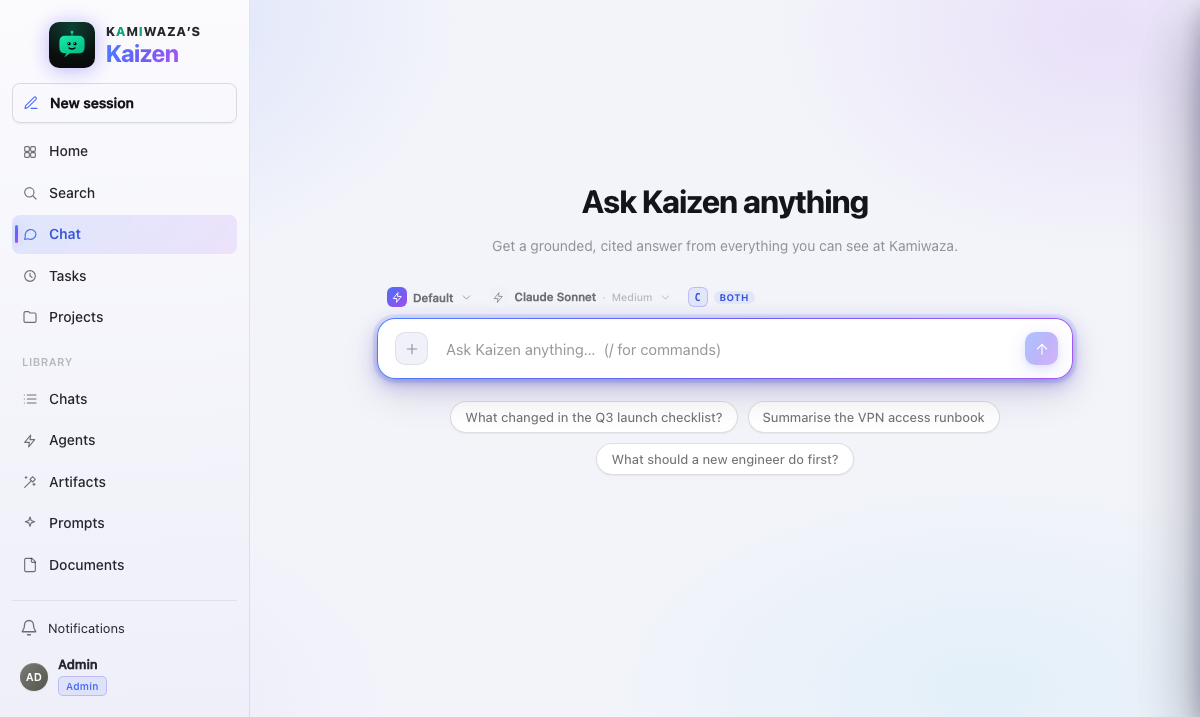
- Click New session in the rail.
- Type your question in natural language and send it.
- Read the answer as it streams in.
New session always opens an empty surface. A message you have started but not sent — with anything you attached, the agent you picked, and a document or prompt canvas open beside it — is kept when you leave Chat and come back to it with the rail's Chat action, so a trip to another screen does not cost you the message you were writing. Asking for a new chat is the opposite request, and it is honoured even when you are already looking at one: the new session starts with an empty composer, no attachments, no open canvas, and the agent you normally use. A reply still being written in the chat you left keeps running and stays in that chat, where you can return to it from Chats.
While a turn runs, its elapsed time stays beside the activity status. You can leave the chat and return from Chats without stopping the turn.
When you specify exact text or a response format, the answer contains only that requested content. If one missing input would materially change the result, the assistant asks one short question for that input instead of presenting conditional answers.
When you ask for something the assistant has no tool for, it tells you so in its answer: it says it can't do that here, names what is missing, and, when it knows, points you to where you can do it yourself. Asking again will not change that answer.
If a turn uses tools but still cannot produce an answer, Chat says that it could not answer and marks the turn as failed. When one of those tools could have changed something, a step failed, or the assistant handed part of the work to another agent, Chat also asks you to check the activity before retrying, because a change may have gone through even though the assistant could not explain the result. A turn that only looked things up has nothing to check, so Chat does not suggest a retry.
Chat checks the authenticated deployment inventory before it enables Send. If no chat model is available, your draft stays in the composer and Chat explains that an administrator must deploy a chat model and select it under Admin → Models.
If you press Enter while that check is still running, as can happen when you open a document with Use in Chat and start typing straight away, Chat holds the message and sends it as soon as a model is confirmed. Enter waits the same way while Chat is still attaching a shared resource. Changing the message or switching chats cancels the held send, so Chat never sends text you did not submit.
A rejected request keeps reviewed, actionable setup errors visible; unknown server or provider details remain hidden behind safe generic copy. When the selected provider confirms a billing or credit rejection, Chat says so and suggests adding credits, raising the provider limit, reducing the response size, or choosing another model. It does not mislabel that condition as a temporary assistant outage or expose the provider's raw account response.
When the first message assigns the session its durable chat URL, the composer and conversation stay in place. Chat shows one continuous sending state: the empty new-chat screen, Home, and the Chats library do not reappear between the draft and saved chat. Your attributed message appears as Sending to the room… as soon as you submit it, before creation, attachment linking, or input acceptance finishes. If acceptance fails, Chat restores the text to the composer instead of leaving a message that the server never accepted. An artifact opened during that first reply keeps the saved chat URL as it follows the artifact, so refresh and return links lead back to the same chat.
A file attached to a brand-new chat waits for that first message. The chat only exists on the server once you send something, so until then there is nothing to attach it to; the file stays on your message and is linked with the send rather than before it. You do not have to do anything differently — attach, type, and send as usual. Attaching to a chat that already has messages links immediately. If an attached file is still uploading or processing, sending with Enter keeps your draft in the composer. Once the file is ready, send the same draft again. If a file failed, remove it before sending the draft again. This also applies when you queue a message while the assistant is working.
The empty-chat suggestion chips use the same access-checked document-title pool as Search. Synced repository knowledge can appear there; item-level issues, pull requests, discussions, and findings do not become prompts.
Every way into a chat leaves the caret in the composer — a new session, a conversation opened from the rail or the Chats library, or a reload of one you were already in. You can start typing without clicking first. If you have already put the caret somewhere else on the page, Kaizen leaves it there; a read-only shared conversation has no composer to focus. The composer keeps the primary Agent and model-and-run-settings controls in the rail. Open More for transcript and response-compression settings. The session token count stays visible beside the primary controls when usage exists.
Chats started with an assistant choice
Some earlier clients asked you to pick Personal, Data, Kamiwaza, or General before the first message. New chats no longer ask; they start the same way every chat did before that choice existed. Chats that were started with a choice keep working and keep their earlier limits:
- A chat started as General stays text-only. It does not accept attachments, linked resources, agents, or private tools, and the chat says so above its composer. It can still search the public web when an administrator has approved that search operation for the workroom.
- A chat started as Data keeps query-style Core and MCP tools hidden when their query egress cannot be safely classified. Public search uses only words from your current message.
To shape what a chat can do, pick an Agent in the composer. An agent carries its own tools, skills, persona, and prompt, so any future choice made when a chat starts, such as an agent that uses no private data or one that may search the web, is a choice of agent.
Choose an agent pipeline
Every Chat composer includes its agent pipeline inside model and run settings. The pipeline pane is the first column, before Models. New conversations use Tomo by default.
Pipeline selection ships off. While it is off, the pipeline pane shows Tomo in a disabled state. You can continue chatting normally; the disabled option does not change how Tomo works.
When an operator enables pipeline selection, only an administrator who is also on the deployment's pipeline allowlist can choose Tomo, Codex, or OMP before sending the first message. Other administrators, members, and collaborators continue to see only the disabled Tomo option and receive no pipeline identifiers.
Kaizen locks an explicit choice when it creates the conversation. Reopening or reconnecting to the conversation shows the same locked assignment to the eligible administrator.
If the selected pipeline later becomes unavailable or incompatible, Kaizen permanently moves that conversation to Tomo before another turn runs. The pipeline pane shows Safety fallback. Re-enabling the original pipeline does restore it for that conversation. Start a new conversation to use the restored pipeline.
Answers are grounded
Claims in an answer carry inline citations. Click one to open the exact source it came from, so you can verify anything before you rely on it. If Kaizen cannot find support for something, a well-behaved answer says so rather than guessing — grounding is enforced by the backend, not left to chance.
Answers keep the lines Kaizen wrote, so a poem or other line-by-line response still reads that way after it finishes and after you reopen the chat. Paragraphs, lists, tables, and code blocks keep their Markdown structure.
Answers are addressed to you
Every agent is told who it is talking to, using the name on your platform profile, so answers and visible thinking say "Steph asked for the Q3 numbers" rather than "the user asked". Change the name in your platform profile and the next turn uses the new one. Nobody else's turn sees your name, including in a shared chat.
Steer while it works
You do not have to wait for the assistant to finish.
In every chat, another normal message is marked Queued for the next agent turn and runs in durable first-in-first-out order. Use Steer the active run only when you intentionally want the current run to take new direction. Your steering message keeps its place in the queue and gets its own reply, and anything you send right after it is queued behind it, in the order you sent it. Cancel active run is a separate, recorded action. Private and shared chats use this same queue, so sharing a conversation never switches execution models or drops work that was already accepted.
Steering keeps the selected model. In a shared chat, you must also have access to that model. If it is unavailable to you, send a new message with an available model selected; Kaizen will explain the problem rather than switch models silently.
Queued, active, completed, failed, and cancelled states appear beside the message that caused them. These announcements are polite screen-reader updates and do not interrupt typing.
Each completed answer keeps its token counts in the quiet footer beside the answer controls. Hover that footer detail to see the initiating agent, the model that actually served the turn, and the reasoning effort; assistive technology announces the same details. Private and shared chats use the same placement, so execution details do not take space above Thinking.
While a turn is live, ~ marks its token indicator as approximate. It begins
with the provider input admitted for the open model call — including system
instructions, tools, and retained conversation context — then advances with
response prose, visible reasoning, and artifact content as each arrives. When
that model call closes, its estimate is replaced immediately by the usage the
provider reported before another tool cycle begins. The number may adjust at
that checkpoint. If the provider omits usable counts, Kaizen labels its
tokenizer-based checkpoint and completed footer as estimated instead of exact.
The flashing cursor and count share one live progress line, and the cursor stays
visible during tool work. Hover for the latest individual request,
completed-call count, and measurement source.
In a shared chat, the current provider-call checkpoint is part of the room's durable progress. Someone who opens or refreshes the room during a turn starts from that same checkpoint instead of reconstructing a different count from only the fragments their tab happened to receive. The live number can still differ momentarily while an open provider call is producing bytes, then both viewers converge at its next checkpoint and on the completed footer.
Artifact generation follows the same room contract. The person who sent the prompt and every current collaborator receive the same progressive Workspace content. Someone who joins or reconnects in the middle receives the latest cumulative artifact state, then continues from live updates without restarting the tool or waiting for the final answer.
Tool and sub-agent activity starts collapsed, including while it is running, so long searches and fan-out do not push the answer down the page. Expand a row to inspect its calls and results. Inside a sub-agent, its visible Thinking narrative appears before the chronological work journal, matching the parent agent's reading order. Visible Thinking is retained as soon as it is shown, including while a tool waits for your approval, then checkpointed in bounded increments instead of one database write per model fragment. Each live fragment is shown before its checkpoint write, and the later durable checkpoint is reconciled by its position rather than appended a second time. The completed answer retains the exact bounded trace. It returns after reload and is available to current shared-room members; completed thinking starts collapsed. Hidden model reasoning is never shown or retained as conversation content.
What appears there is the visible reasoning narrative that the selected model provider sends to Kaizen, not private chain of thought. Kaizen shows each available fragment without shortening or rewriting it when Plain-speak is off, but providers differ: one may send a detailed narrative while another sends a summary, intermittent batches, or no visible reasoning. Higher effort gives a capable model more reasoning budget; it does not guarantee a longer or more verbose Thinking transcript.
An open Thinking panel follows new fragments while you are reading at its bottom. Scroll upward and it stays at that position while later fragments arrive; return to the bottom to resume following. Opening the chat-sharing form during a live turn also leaves focus in the recipient field, so streaming does not interrupt the name or email you are entering.
Tools the assistant can use
Depending on the agent, a Chat turn can do more than retrieve:
- Read one of your documents and answer grounded in it,
- Find a folder or file in a connected source using the name you know — you do not need to know which connector provider owns it,
- Search prior conversations to point you at where something was discussed,
- Search About when you ask what Kaizen supports or how a Kaizen workflow works,
- Run code in an isolated sandbox and use the result,
- Build an artifact — a runnable output like a chart, script, or small app,
- Manage your tasks — when your deployment has Tasks turned on, preview, create, inspect, test, activate, run, or cancel, and continue substantial work as a background job,
- Delegate to another agent, when you have opted that agent in.
If code needs a package your installation cannot fetch, the run stops before the code starts. Kaizen tells you which package could not be installed and why (for example, that the package registry is unreachable), and your workspace files are left as they were.
Open the composer capability menu and choose Tools to narrow the live Kamiwaza tools for this conversation. Tools are grouped by surface, such as Context, Skills, Workrooms, or an MCP source. You can turn individual tools on or off only within what your administrator enabled and the selected agent's read/write capability allows; your choice cannot add permission. Enabled Kamiwaza SDK tools work with every chat agent. A read-only agent can inspect but cannot receive the SDK's write adapter. If an administrator turns off a whole service such as Context, none of its endpoints appear, while unrelated services remain available.
Large platform catalogs stay searchable instead of being placed wholesale in the assistant's context. The assistant receives a matching tool definition only when the request needs it. Context Service data, skill packages, and other platform records are not loaded merely because their tools appear in the menu. Ask for the data or action you want so the assistant can invoke the authorized tool at that point.
If you ask broadly what Kamiwaza tools are available, Chat first returns a bounded summary of authorized parent surfaces such as the SDK or a Core service. That summary contains counts and effects, not endpoint schemas. Naming a service or action then searches and loads only the matching callable operations.
Safe connector settings such as a Website connector's sites list can use the
same write path. Chat forwards your current Kamiwaza identity and workroom, and
the write still follows your resolved permission mode and live platform
authorization. Ask when required pauses for approval; Never ask uses the
risk choice you already confirmed and does not invent an approval receipt. A
credential-shaped field is rejected before the request is sent; Chat never asks
you to put its value in the connector configuration arguments. Before filling
an open-ended configuration, Chat reads the selected connector type's live
configuration schema rather than guessing its fields. After a create or update,
it reads the connector back and checks that your requested settings persisted;
an empty or different saved configuration is reported as a failure, not success.
Dynamic Kamiwaza surfaces are available in private chats. They stay out of a shared chat until that surface has an explicit audience-safe contract; belonging to the same workroom alone does not make one person's tool result room content.
When your administrator enables external API capabilities and its network policy, you can grant Manage external API sources and ask Kaizen to create a tool from an HTTPS OpenAPI site. The source can be private to you or visible to your workroom. After an administrator admits the source or its endpoints, they appear in the same Tools browser and remain individually selectable.
If an external endpoint needs authentication, Chat opens a native credential form. Check the displayed Destination before entering anything. Use once is the default and does not remember the value. A failed attempt clears the form and asks you to enter it again. Remember is a separate button and appears only when your administrator permits encrypted DataHub storage. NPE and mutual-TLS connections use certificate, private-key, and optional passphrase fields in the same form.
If an API describes a credential as an ordinary tool argument or publishes an invalid input schema, Chat leaves that endpoint unavailable and continues with the other authorized tools. It will not ask you to work around that protection by pasting the value into your message. Connector and MCP catalog checks are reported in the answer and Thinking steps; they no longer open a separate inventory table in Chat.
Never paste a password, API key, token, private key, certificate, or passphrase into chat. Enter it only in the credential form. Kaizen does not place those values in the conversation, tool arguments, results, or audit history.
About search reads the same product manual bundled into this app and returns
links under /docs. It takes precedence over general document search for
questions about Kaizen itself, so engineering planning documents do not stand in
for the shipped product contract.
When code needs an exact file rather than a retrieved excerpt, the assistant must first discover an authorized passage, request that passage's current document, and then read the server-assigned file from the sandbox's read-only resource manifest. Titles, paths, and model-supplied identifiers do not grant access. A private document is never silently promoted into a shared chat.
Code in a reply reads the chat's shared files as they were when the reply started. A table or artifact the assistant creates in the reply does not stop that reply's code, but it is not among the shared files code can open until your next message. Files that code writes stay in its own workspace, so later code in the same reply can usually open them there. When your code writes a file identical to the latest version of it your code saved in this chat, the chat keeps that saved file instead of a second copy, so Workspace lists it once. If the chat's shared files change after the reply starts, or the reply revises an artifact or document the chat already had, the code does not run: the assistant says so and asks you to send the request again as a new message.
Actions that change something pass through Kaizen's approval and audit controls. Everything a tool touches uses your permissions. See Guardrails & policy.
Rich tool results such as images and tables appear once as an inline canvas in the answer. The same canvas remains in place when the final answer arrives; a terminal replay does not duplicate it or replace it with a different output. If a later catalog call returns the same table unchanged, Chat keeps the first canvas instead of repeating it down the transcript. Changed tables and message-specific forms, jobs, and images still appear with the turn that produced them.
You can also explicitly ask for an inline canvas, chat canvas, or canvas mode when you want a temporary Markdown-rich result inside the turn. That content stays with the conversation but does not create an Artifacts library item or open the separate Artifact pane. Ask to save or create an artifact when you want a versioned item you can edit, share, or download later.
For PDF, Word, PowerPoint, and spreadsheet requests, Kaizen claims successful delivery only after the matching native file has been kept. Click the file in the answer or Workspace → Outputs to open it in the split Artifact pane without leaving the chat. PDF opens from the stored file in your browser's native PDF viewer, PowerPoint opens in an embedded slide viewer, and other Office files use a bounded content view. The pane keeps an explicit Download action for the fully formatted original. Generated files remain in the originating answer and Workspace after refresh. If the request is missing a detail that changes the result—such as the subject of a presentation—the assistant can ask one focused question without presenting that clarification as a failed file-generation attempt. An honest generation failure remains an explanation rather than being rewritten as a success. In a collaborative chat, a generated native file is retained under the member who ran the tool and linked to that exact room. Current room members can preview and download that room reference without gaining access to the creator's other files; leaving or revocation closes the room path. This also applies when you create the file first and share the chat later: accepting members receive the already-retained file through the new room reference. PowerPoint rendering uses the stored presentation itself, including its layout, images, shapes, tables, and charts where the browser supports them; it is not rebuilt from extracted bullet text. You or another current room member can also ask Kaizen to transform that retained file in a later turn—for example, to create a PDF from a shared PowerPoint. Kaizen passes a safe file description to the model and makes the digest-verified original available read-only to code execution; it does not put binary file contents into the prompt.
Citation and document previews open in that same Artifact pane rather than a separate Preview drawer. The pane keeps one resize, full-screen, focus, and close contract whether it is showing generated content or a source document.
When a tool needs your decision, an approval item appears inline beside the waiting turn and stays with that turn when newer messages arrive. It does not cover the conversation or Workspace, so you can inspect the current artifact and the tool's redacted arguments before you approve or deny it. A proposed new artifact stays out of the Workspace while the item is waiting. A proposed update stays held by Kaizen's backend, so its content is not sent to your browser and the version in the pane does not change before your decision. After approval, only that exact proposed call appears: a create opens its pane, while an update streams over the existing version and keeps its code language and syntax highlighting. The transition remains progressive even if the selected model delivered the whole proposed call at once. Another update aimed at the same artifact cannot be released by that decision. Denial discards it. Always allow tool in this chat approves the current call and remembers only that tool for this agent in this conversation. Later calls to that tool can proceed without another member prompt, but other tools still follow the Chat permission mode. The picker does not move to Never ask, and selecting Read only later still blocks the remembered tool. This does not change your saved user or agent default, and Task approvals remain one-shot. If you leave, the notification links back to that exact conversation item. Approval requests for unattended work use the same thread item without taking over the screen. The item keeps comfortable space around its status, review details, and controls while it is pending. After a decision it stays in the conversation as a compact collapsed summary; expand it when you need the retained review details. Historical approvals therefore do not accumulate into a wall that hides later Thinking and tool activity.
If you stop a response before it finishes, Kaizen retains the accepted request and interruption in its durable event history. Your next message receives that unfinished request as context, whether you say “finish that,” revise one detail, or use another natural follow-up. A completed later turn closes that interruption context so an older request is not reopened. If the backend safely preserves an answer during recovery, that answer appears as an ordinary completed answer. Chat does not add a separate “recovered answer” label to backend recovery bookkeeping.
Once Chat accepts a sent message, its durable run already exists. You can move to another screen or close the tab immediately without racing the request's creation; reopening the conversation reconnects to the same work. The tab that sent the message also keeps checking the room's authoritative state while it shows the active response. If a server process is replaced, the tab wakes that same accepted input and continues automatically; a manual refresh is not part of recovery.
Open the model and effort picker beside the composer to choose Permissions
for this conversation: use saved defaults, ask when a tool requires it, ask
before every write, block writes, or never ask. The choice is remembered for
that chat in your browser for your signed-in account and rides each turn; it
does not edit your personal or agent default. Another participant in the same
chat keeps their own choice, even when both people use the same browser at
different times. Type /permissions to reach the same choices. Never ask
shows a warning and bypasses only Kaizen's member prompt, not tool grants,
sandboxing, MFA, resource access, administrator policy, or audit.
Assistive technology announces the combined control as Model and reasoning
effort, plus permissions, preserving the familiar model-and-effort name.
When several connected sources might contain what you named, Kaizen searches the ones your administrator enabled and that you can currently access. One source being unavailable does not broaden access through another; the result is marked partial when some sources could not be checked.
Work with a federated cluster
When your administrator has connected this workspace to other Kamiwaza clusters, you can ask Chat to list a federated cluster's models or datasets, check jobs there, or run a job on it. Those clusters know you by your identity in a shared sign-in realm rather than by your sign-in here, so the first time:
- Ask Chat to link your identity for that cluster, for example "link my ORION identity".
- Chat shows a sign-in link and a short code. Open the link, sign in with your account for that shared realm, and approve.
- Tell Chat you are done. The link is saved as soon as you approve, so you do this once per realm. Chat asks you to link again only if the link is revoked.
Reading from a federated cluster never asks you to confirm. Running a job or making another change there shows an approval card naming the cluster, the request and the command, unless your approval setting is Never ask; in read-only mode it is blocked. What you can see and run is decided by the other cluster's own policies for your linked identity.
These tools work only in a chat nobody else is in. What the other cluster shows you depends on your own identity there, so in a shared chat Chat cannot use them. If you decline the sign-in or it times out, Chat says the link was not completed; ask again for a new sign-in link.
Let substantial work continue in the background
When a request is exhaustive, long-running, restart-sensitive, or too large for one answer, the current agent can move that exact work into a durable background job. You keep using Chat normally; you do not have to create a Prompt, define a schedule, keep the tab open, or switch to a special ontology workflow.
The message receives a live job card with its current state. Choose Stop to cancel non-terminal work or Open details to inspect the Task run, trace, output conversation, usage, diagnosis, and artifacts. The card reloads from the durable run after navigation or refresh. Exhaustive Library work also exposes safe pause and resume controls at partition checkpoints. When one chat has several jobs, use the relevant card or name the job; Kaizen will not guess which one an unqualified control should change.
The job runs once with the exact agent and version selected for the originating message. A background job cannot create another background job. If the work only needs ranked evidence, the agent can stay in the current turn; it selects an exhaustive corpus only when complete coverage is actually required.
Background jobs need Tasks, which are off unless your administrator has turned them on. Every background job this chat started also appears under Background tasks in Workspace, alongside artifacts, attached files, and run outputs. The card in the transcript stays with the message that started the work; the Workspace list is the running total for the whole conversation, so you can see what is still going without scrolling back. Each row shows the current state and opens that exact run in Tasks. A job that finishes, fails, or is stopped while you are elsewhere settles in place without a refresh.
A task you create from Chat stays visible in that chat
When you ask Chat to schedule work — a one-off task or a repeating one — the turn that creates it shows a card for the task itself. The card carries the task's title, what it will do, its schedule in plain words, its current state, and Open details, which opens that exact task in Tasks. The task has not run yet, so the card names no run and offers no run controls; start, pause, and resume live on the Tasks screen. Once the task starts running, its runs appear there, and the task keeps notifying you under Notifications — once per outcome, not once per occurrence.
Multi-file artifacts
When Kaizen builds a project, each source or configuration file appears in
Workspace as soon as it starts streaming. Project-relative names such as
app/api/routes.py are shown in collapsible folders. Once the turn settles,
the assistant message groups those individually openable artifacts into one
compact project-file tree.
The Artifacts library keeps files from the same authoring turn together as a project tree, while unrelated projects with matching paths remain separate. See Artifacts.
A new chat starts with a fresh artifact scope, so a direct request to create a file creates it even when similarly named files exist in older chats. To revise an older artifact, open that artifact first or continue in its original chat.
Scope a chat to your knowledge
You can focus a conversation:
- Attach a document to ask about a specific file — see Documents.
- Use a collection to keep retrieval within a curated set of sources.
- Pick an agent built for your task from the agent picker.
Attachments scope the conversation and are also available to code execution as exact, read-only files. Retrieval may help the assistant find another document you can access, but the assistant must explicitly request that file and Kaizen checks access again before each sandbox run. When you attach another image later in the conversation, Chat presents that new image on the current message. Earlier attachments stay available in the conversation for follow-up questions and tools.
Type @ anywhere in the composer to open the resource finder. Keep typing to
fuzzy-match names, descriptions, and resource types across the complete
library. Typing is the only filter: arrow keys move through the ranked results,
Enter selects one, and Escape closes the finder.
Each selection uses its normal Chat action. A Prompt fills the composer or
opens its multi-step flow. A Document becomes the same removable, structured
attachment as the paperclip flow. Tools and Connectors scope the turn's
capability selection, an Agent becomes the active Agent, and an Artifact opens
as the focused work. A Collection inserts a clear instruction naming that
collection for retrieval; it does not bypass the active Agent's grounding or
your access. The visible name is never authority, and Kaizen still checks
resources and capabilities at use time. The earlier whole-input # document
shortcut remains available.
Choose a model and effort
Beside the composer you can pick the model and the effort level for the turn. Higher effort buys more reasoning at the cost of time and tokens. The defaults are set in your preferences and can be overridden per conversation.
Plain-speak answers
You can opt into Plain-speak responses under Settings → Preferences → Chat compression, or open Compression beside the composer. The compact label shows the effective state as Off, RTK, Caveman, or Both.
Plain-speak makes user-visible thinking and final answers terser without dropping technical substance. Tool selection, tool arguments, retrieval results, citations, source links, approval prompts, and structured tool payloads do not change. Security warnings, destructive-action confirmations, and anything that would become materially ambiguous stay fully clear.
Changing the setting affects the next turn and never rewrites an answer already shown. See Chat compression.
Check compression statistics
Type /compression stats in the composer, or choose View compression stats
from the Compression popover. Neither path adds a message to chat history,
starts an agent turn, prewarms a model, or consumes tokens.
Compact a long chat now
Type /compact in an existing Chat when you want Kaizen to compact its earlier
model context immediately instead of waiting for the automatic safety
threshold. The command does not add a message or start an answer. Kaizen shows
the compaction progress as a labeled divider in the thread, keeps the visible
transcript unchanged, and resumes an in-progress compaction after you reopen
the chat. If the browser briefly changes networks, it reconnects to the saved
task and replays its result without starting compaction again. Automatic
compaction leaves the same divider beside the affected
answer, including after a reload, so you can see exactly when context changed.
Wait for an active answer to finish before compacting. A new, unsent chat has no durable context to compact yet.
Continue and revisit
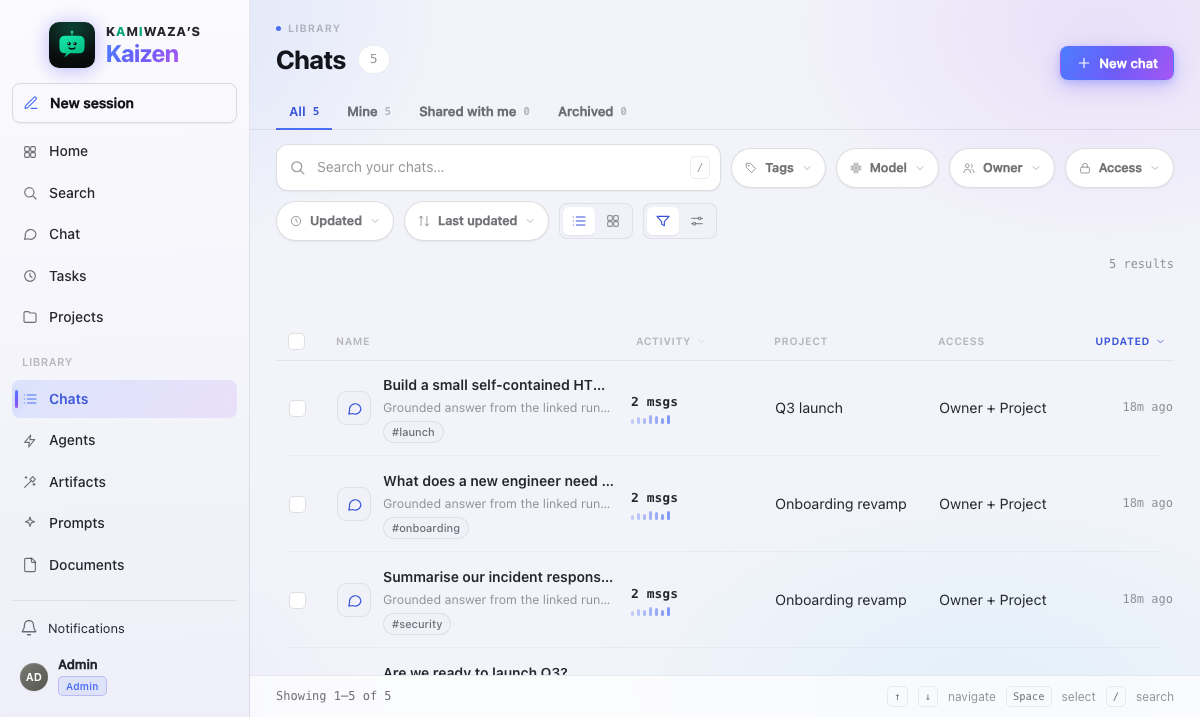
Conversations are saved. Open Chats in the rail to find a past session, reread it, and pick up where you left off — the context comes back with it.
You do not have to wait for an answer. Send your question and go somewhere else; the assistant keeps working. Reopen the conversation and the answer is there, whether it finished while you were away or arrives after you return. If it finished while you were elsewhere, it also lands in your notifications, so work that completes behind your back is never something you have to remember to go back and check.
Paste a screenshot into the composer
Copy a screenshot, an image, or a file, then paste it into the composer with Ctrl+V (Cmd+V on a Mac). It attaches to your message exactly as dragging it in or picking it with the paperclip does — same size and file-type limits, same place in your library afterwards.
A screenshot arrives from the clipboard without a name of its own, so Kaizen
names it for you by kind, date, and time — for example
pasted-image-20260918-141233.png — instead of leaving a library full of files
all called the same thing.
Pasting text still just types the text. If what you paste carries both text and an image, you get both: the text lands in the composer and the image attaches. A conversation you can only read has no composer, so nothing is attached there.
Work with someone else
Chats can be shared with named colleagues. See Sharing & collaborative chat.
Pick the right agent
The default Chat agent is a good generalist. For recurring or specialized work, switch to a custom agent with the right persona, tools, and knowledge scope — yours or one shared with you. See Using agents.
Trim filler from your prompts
Turn on Prompt trim under Settings → Chat compression if you would rather not spend a turn's budget on "I was just wondering if maybe you could possibly". Kaizen removes that kind of filler from the copy of your message it sends to the model.
Your chat still shows your message exactly as you typed it, including the filler, and so does the history and anything that replays the conversation. Code, inline code, text in quotation marks, and links are never changed, a sentence carrying "not" or "never" is left alone, and if trimming would leave too little of your message Kaizen sends what you wrote. It costs no extra time, because nothing about it asks a model.
See Chat compression.
Watch a long answer, and walk away from it
While an answer is being prepared, the status beside the assistant avatar
carries a running clock — 0:07, 1:24, 12:03 — so a turn that is taking
its time is visibly working rather than possibly stuck. The clock counts the
run itself, not your view of it: leave the conversation and come back, or
reload the page, and it still reads the real age of the answer instead of
starting again at zero. It disappears as soon as the turn finishes, and a
finished answer you reread later never shows one.
You can leave a long answer at any time. Open another conversation, go to Documents, switch to another browser tab or app, or close the tab — the run continues, because it is the server that is doing the work, not your browser. The answer is waiting in the conversation when you come back.
If you are not watching that chat when the answer finishes, it also lands in your notifications, under the bell in the rail:
- You moved elsewhere in Kaizen or closed the tab. You stop watching straight away.
- You left the chat open in another browser tab, or minimized the window.
You stop watching once the tab has been out of sight for about ten seconds;
a quick glance at another tab does not count. An answer that finishes inside
those ten seconds is only in the chat. While the tab stays hidden, its title
shows how many notifications are waiting, such as
(1) Kaizen. - The chat tab is still showing, even if another app has the focus, or the chat is open in a second tab you are looking at. You are watching, so there is no notification. Some browsers also treat a window that is fully covered by another as out of sight.
In a shared chat, the others in the room see you leave once your tab has been out of sight past those ten seconds, and see you again when you come back.
These are notifications inside Kaizen, not desktop or phone alerts: you see them the next time you look at a Kaizen tab.
Reloading a slow turn is safe, and it is also unnecessary. A reload replays what has already been recorded and rejoins the same run; it never starts the work over, and it never loses an answer in progress. See Notifications.