Artifacts
An artifact is something Kaizen built for you rather than said to you — a chart, an SVG image or illustration, a script, a small app, a document, or a multi-file project. Artifacts are versioned, openable, and yours.
Where they come from
Artifacts are produced during a chat turn. As the assistant writes each file it
appears in the Workspace panel beside the conversation, streaming in
real time. Project-relative names such as app/api/routes.py are shown in
collapsible folders. There is one security-first exception for a newly created
artifact: Kaizen buffers its source until the complete create request arrives.
A finished ordinary artifact then appears and is saved, while a create call
interrupted before its request finishes leaves no partial artifact to resume.
Revisions to existing artifacts still stream once their private checkpoint is
open. Buffering new creates prevents a model-authored call from first opening an
ordinary saved artifact and later labeling the same bytes as a governed result.
Workspace folders start closed. Select a folder to show its files or close it again. You can also collapse the Artifacts, Imports, and Outputs sections. Documents you attached stay under Imports while an artifact is generated, even when the new artifact uses the same filename.
Source whose type has not arrived yet is shown in the inert code editor; Kaizen does not treat partial Bash, Python, or JSON as a live web page while it is still discovering the artifact kind. Before the first source token arrives, Kaizen keeps its internal preparation out of sight rather than mounting an empty preview or loading surface. When the declared type arrives after the first source bytes, the same in-progress artifact adopts it before completion. An early inert placeholder therefore becomes the requested live HTML form instead of staying mislabeled as code. If you closed the artifact before asking for a revision, its first streamed update reopens the pane. HTML, SVG, React, Mermaid, Markdown, graph, and widget work follows Preview; opening the in-progress file from Workspace keeps that render type instead of presenting it as source code. Closing it again during the same update is respected — later fragments remain available in Workspace without repeatedly taking focus.
If a revision arrives all at once, its completed artifact still reopens in Preview. A rejected revision does not reopen a pane you closed.
Once the turn settles, the assistant's message groups those individually openable files into one compact project-file tree, so a ten-file result reads as one deliverable instead of ten attachments.
A request such as "Create a report of ..." offers the artifact writer first, beside the agent's other tools rather than instead of them, so the agent can search and read your documents before it opens a draft.
Larger generated artifacts are written as one staged operation. Kaizen opens a private draft, adds bounded pieces in order, and makes the result complete only after the final piece and its integrity check succeed. The preview may advance while those pieces arrive, but an unfinished draft is not presented as a finished download or shared with a room. If generation cannot be completed, the turn reports that outcome instead of claiming the artifact is ready.
The complete set of staged actions is made available together. If a stale run tries to use an action that was not available when its current step began, the run stops after that failed action and keeps the private checkpoint for safe recovery; it does not repeatedly ask the model to finish with an action that it cannot call.
Native PDF, Word, PowerPoint, and Excel files
When you explicitly ask for a PDF, Word document, PowerPoint presentation, or
Excel workbook, Kaizen creates the native .pdf, .docx, .pptx, or .xlsx
file and returns it as a durable output. It does not substitute print-styled
HTML, plain text, or a canvas behind the requested filename. Generated files
are checked before they are kept, so a broken or mislabeled file is reported as
a failed run instead of appearing as a download that its native reader cannot
open. Generated code writes the requested file by its relative filename in the
sandbox's current workspace. A failed run or a run that returns no durable
download is reported honestly; Kaizen does not say the file is ready unless the
matching attachment exists.
When the code that builds your file stops with an error, the answer names the file you asked for, says it was not produced, and gives the cause in one short line — for example, the error type and message the code raised. It never shows you raw tool output. The assistant normally reads the full error, fixes the code, and tries again on its own; if you asked it not to retry, it tells you the file was not made instead.
When generation starts, the requested filename appears immediately in the Artifact pane with a Creating state. This is progress, not a second file: it has no download or durable identity. After the sandbox validates and retains the native bytes, the same item becomes the openable file in the answer and Workspace without requiring a refresh. If generation fails, the progress item is removed and the turn reports the failure without leaving a broken Workspace entry behind. When the assistant then retries the same file in the same reply, the pane stays closed while it works and opens again only on the finished file, so a few failed attempts do not open and close the pane each time. If you have another artifact, a preview, or a browser session open by then, the finished file waits in the answer instead of replacing it. If a temporary connection failure interrupts the confirming read, a later conversation update can retry it; Creating never means the file has been saved before its bytes are confirmed.
Progress uses the familiar product names—PowerPoint, Word, Excel, and PDF—while the retained filename continues to show its exact native extension.
PDF files open from their stored bytes in your browser's native PDF viewer; Kaizen does not reconstruct their pages with custom artifact code. PowerPoint uses an embedded browser-local slide renderer over the actual stored deck, including a bounded retry when the preview surface or bytes are not ready yet. Word and Excel use bounded content views. The original file remains available to download from the Artifact pane.
For an HTML or widget artifact, the editor keeps the embeddable fragment that
the safe preview pane expects. Download packages that source as a complete
HTML document with a document type, language, metadata, title, and body, so the
saved .html file opens directly in a browser outside Kaizen. A source that is
already a complete HTML document is preserved rather than wrapped twice.
The Artifacts library
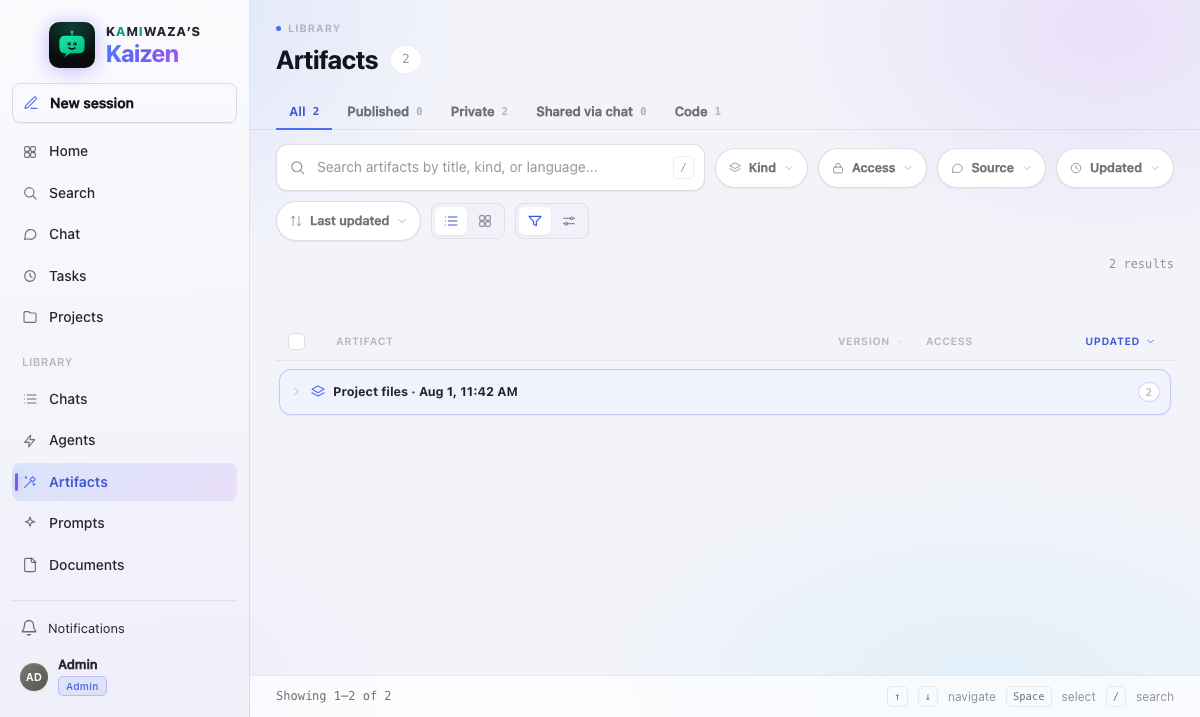
Open Artifacts in the rail to see everything you have accumulated. Files authored in the same turn stay grouped as a project tree; unrelated projects that happen to share path names remain separate.
From an artifact you can:
- open it and read or copy its contents,
- rename it,
- browse its versions,
- fork it to start a new line of work without disturbing the original,
- attach it to a conversation,
- publish it as a share link, or unpublish it again,
- run it, where your deployment enables running artifacts,
- delete it.
In Code view, supported languages are reindented for reading. Compact XML also gains line breaks between elements; mixed text stays together, and invalid XML remains as written. Markdown still renders in Preview. This is only a display change: Copy, Download, Edit, saved versions, and the assistant use the original source, not the formatted view.
Governed structured-data artifacts are the exception to rename, attach, and publish. Their attested title and existing conversation scope stay with the result, and you cannot attach one from your library to another conversation or create a new share link. This prevents a result from being relabelled or shown to more members than its governing source allowed. A governed result created inside a shared chat may already belong to that room; this restriction blocks widening its audience later through a library action. You can still unpublish an existing share to reduce access. Ordinary artifacts keep rename, attach, and publish.
Structured data artifacts keep their security markings and source cluster/dataset/job references beside the data. Reviewed row datasets open as a native table. A payload whose specialized visual renderer is not installed uses its producer-supplied text fallback instead of executing remote code. JSON shows the inert canonical envelope, and Download saves that same envelope so its data, markings, and provenance stay together.
If stored content marked as a structured data artifact does not pass envelope
validation, Kaizen shows an invalid-preview warning and preserves the exact raw
bytes for download as a plain-text .txt file. It does not label malformed
content as JSON.
When a result has different markings for its banner, summary, rows, or geometry, the Artifact keeps and displays those portions separately. A result whose source reports a markings error is not saved as a renderable Artifact.
Some envelopes retain a content-bound reference to an already-governed result instead of copying it. This release does not resolve those references. Every such Artifact is labeled as a governed result reference and shows only the producer's text fallback; the opaque reference remains in the JSON view and download. Opening it never fetches the result or reruns the source job.
An administrator may install and explicitly enable a reviewed renderer pack
for one exact renderer type, payload type, and payload version. A matching
inline Artifact gains its reviewed view only after the active backend pack
admits that exact stored content. Unknown, disabled, mismatched, rejected, or
failed renderers stay in the text view without changing the stored Artifact.
Referenced results remain fallback-only until a separately reviewed resolver
can verify them. The reviewed view stays inside the same Artifact pane: drag its
left edge for a wider canvas, use the arrow keys on that divider for precise
adjustment, or enter full screen. Leaving full screen restores your saved pane
width. When the Artifact carries a named banner marking, its exact text stays
in the sticky bar above the reviewed view while that view loads, displays,
fails, or returns to text fallback. The same marking stays visible above the
read-only source when you switch to JSON. The renderer cannot cover or
replace this host-owned bar.
Newly committed scripts stay on their source by default. Choose Run when you want to execute one in the sandbox, or explicitly turn on Auto-run in the artifact pane if you want runnable code to execute whenever you open a new version. Kaizen remembers that opt-in on this device. Automatic execution keeps the completed source visible while it prepares a visual result, then swaps directly to that result. A failed, console-only, or download-only automatic run stays on the source; choose Show output when you want to inspect it.
Use Full screen when you need the artifact workspace without the surrounding
library or conversation. The same control exits full screen; Escape exits it
as well, and focus returns to the control that opened it. The control is
available for every artifact kind and for source documents opened in the same
Artifact pane. It is also on the panes that are not artifacts in the strict
sense — a file produced by a run, and a
browser session — because "give this the whole
window" is the same request wherever the pane came from. Leaving full screen
restores the pane width you set by dragging its edge or nudging it with the
arrow keys. Opening another artifact keeps the workspace full screen until you
explicitly leave that mode.
A dialog that opens above the expanded workspace keeps the keyboard while it
is there: Escape answers that dialog and the artifact stays expanded behind
it. The next Escape leaves full screen, and the one after that closes the
pane.
A published artifact opened from a share link has no full-screen control. That
page is the artifact already, so there is no smaller layout to go back to, and
Escape leaves the artifact filling the page.
The pane renders at exactly the width you chose. How wide you can make it depends on what else is sharing the row: the conversation column keeps a readable minimum, and an open Workspace panel takes its own share. On a narrow window, or with the Workspace open, the pane will stop widening sooner than it would with the Workspace collapsed — the width it settles on is the width it saves, so it will not quietly shrink back the next time you open it.
Closing the pane returns focus to the control you opened it from: the library row or card, the artifact chip in a message, or the Workspace entry. Keyboard and screen-reader members carry on from where they were rather than from the top of the page.
Versions
Full-content generation opens the next version when writing starts. While that version is being written it is a private checkpoint; completed versions remain immutable. Older versions stay readable, which means you can compare, roll back by forking, or cite exactly what existed at a point in time.
For a localized text revision, Kaizen selects the exact source lines and shows them above the artifact while the replacement arrives. One revision may update several separate ranges together. The before-and-after strip is an observation surface, not an approval control. Markdown re-renders the projected document as the replacement streams; HTML, SVG, and widget artifacts update their safe live preview. React and Mermaid retain their last working preview until the exact incoming source renders successfully. Prompt, graph, and code edits remain source-first.
Only the short line-range label is announced by assistive technology while tokens arrive. Afterward, the pane briefly reports either the new version or that the committed artifact was unchanged.
The streamed ranges are provisional. They do not create a version for each token or expose incomplete content as committed history. Once the complete edit still matches the artifact version and displayed content tag, Kaizen validates every range and appends one immutable version. A stale, malformed, overlapping, rejected, or stopped edit disappears and leaves the committed artifact unchanged.
Large artifacts remain editable beyond the initial chat context. Kaizen can read a bounded later line range under your artifact access before preparing the revision. Selecting text in the source editor also carries its exact inclusive line range into the edit request rather than asking the assistant to count it again.
For full-content generation, the open artifact changes in place as additions, replacements, and deletions arrive. It does not open a second preview or place the old version under the new one. If you stop that generation, the partial private checkpoint remains available. A follow-up such as “finish that change” continues and completes the same version, so stopping does not create an extra version or make Kaizen claim the interrupted edit was already done.
Stopping a generation yourself is different from an assistant that starts an artifact and then changes its mind. When a reply finishes normally but an artifact it began was never actually written, Kaizen removes that unfinished version instead of keeping it. You are not left with a stalled artifact in your list that never loads and cannot be resumed.
Anything that holds work you asked for is kept. A version you stopped stays, and so does one a reply picked back up to continue — including when the assistant then abandons that continuation. The same is true when a reply is cut short by a time or length limit rather than finishing.
For a newly staged artifact, each accepted piece carries an ordered checkpoint. A restart can continue the single private draft from that checkpoint, while a late process from the earlier attempt is prevented from adding more content. The write protocol is also bounded independently from other agent actions. It adapts each piece to the selected model's output capacity and encourages one complete piece when that safely fits, while retaining enough recovery steps for smaller pieces. A complete artifact remains capped at 400,000 characters and does not spend the turn's ordinary search or action allowance. Only finalization makes the artifact eligible for the answer, room sharing, publishing, or automatic repair. A draft that validation rejects is removed from the live Workspace rather than being mistaken for a completed file.
When that revision needs approval, the proposed content stays buffered and the pane continues to show the committed version, and no checkpoint version is created. Approving opens the next private checkpoint and starts the in-place stream; denying leaves the pane untouched. Tool arguments remain available in the inline approval item for review before you decide.
When you ask Kaizen to revise a particular artifact, that artifact's exact identity determines the target even if a different artifact is open in the Workspace panel. The open panel is used only when no artifact was named, so an edit cannot silently land on whichever item happened to have focus. An exact artifact identity can name another item you own even when it is not part of the current conversation. Kaizen resolves that identity again under your account. Outside an active shared-room grant, a missing or foreign target is refused.
In a shared chat, every current participant sees the same selected Hashline range, streamed replacement, and projected artifact—not only the member who started the edit. A participant who opens or reconnects partway through receives the latest bounded in-progress argument snapshot instead of waiting for another fragment. This live view is temporary room progress, not a durable version. Artifact versions stay immutable in history, and only the completed owned version or collaborator-owned remix is linked into the room. A stopped or invalid range restores the same committed artifact for every participant.
If you ask Kaizen to change an artifact another participant created for the room, the streamed result becomes a new artifact that you own. It records the exact room version it was remixed from and joins the same chat when complete; the other participant's original and version history do not change. Everyone who can currently open the room sees the same in-progress canvas and completed remix, including after refresh.
Running an artifact
Where enabled, an artifact can be executed. It runs in the same isolated sandbox tier as any other code Kaizen runs on your behalf: a disposable, locked-down environment bound to you.
Running an artifact has no network access, even though code the assistant runs during a conversation does. Run executes stored code, and an artifact that somebody published can be run by anyone who can open it, so the run stays offline: published code cannot call out from your sandbox.
Run output replaces the source only after you choose Run, or after you have explicitly enabled Auto-run and a visual result is ready. Back to code returns to the versioned source without discarding the cached result.
When you run an artifact directly from your personal library, its incidental output stays private to you. In a shared chat, a validated file the assistant creates for the room is retained and shared with current participants automatically; stdout, stderr, and other workspace files remain private. See Code sandbox.
Scripts that require host administrator privileges are different. Kaizen does
not offer Run or automatic execution for sudo, visudo, /etc/sudoers, or
an explicit root-user guard. Review or download the script and run it on the
intended host with an administrator. Ordinary Bash scripts remain runnable in
the sandbox when artifact execution is enabled.
Sharing
Publishing an artifact mints a members-only share link. The link is a convenience, not a capability: opening it still requires a signed-in account that is allowed to see the artifact, and an unpublished artifact returns not found.
Governed structured-data results cannot be published from the member API. If a governed result already has an authorized share, Unpublish remains available to withdraw it.
Someone who opens a shared artifact can remix it — taking their own copy to work from, without gaining access to your original or your workspace.
For a structured data artifact, fork and remix are exact-copy actions. The copy retains the same inert envelope bytes, markings, and source context; its envelope cannot be revised or supplied with replacement data. Its new library root is copy lineage, not a new producer attestation.
Unpublish at any time to withdraw the link.
Artifacts in a shared chat
An artifact created during a collaborative run becomes room content for active participants, alongside the messages and citations it accompanies. Promoting an artifact is an explicit, audited action that passes the normal size, type, redaction, and resource policy.
A later collaborator edit follows the same room boundary without granting write access to the creator's artifact. Kaizen creates and attributes a new collaborator-owned remix, then appends its completed resource link to the chat. That keeps both results inspectable and preserves who initiated each change.
Generated native files follow that same rule. The retained file is the one retained Workspace resource shown in the originating answer and to current room participants after refresh; the conversation does not store a second copy inside the answer. Native files stay under Outputs; they are never also presented as document Imports. A document that you explicitly attach still opens through its exact room grant, so collaborators do not need—and do not receive—the owner's Library permission. Each participant still executes follow-up code in their own private actor-and-conversation sandbox.
Generated editable files are likewise shown once under Artifacts. Workspace does not repeat a generated filename under Imports merely because the room also has a resource reference for it.
Promoting one artifact never exposes the rest of your sandbox workspace — not the files you did not promote, not installed packages, not environment values.
Link to a Project
Open an artifact's actions and choose Add to Project to organize it with related work. This is a pointer: it does not copy the artifact or change its owner. It does share it — a new link follows your Share new documents with this Project preference, so unless you have turned that off, the Project's other active members can open and read that artifact. They cannot edit, rename, publish, delete, or re-share it, and the link shows in their Artifacts list labelled Shared with Project rather than as their own work.
You control that afterwards from the item's actions in the Project: Make private withdraws the grant, Share with Project restores it. Only the member who filed the artifact sees those controls.
You can also drag the artifact straight onto a Project. Pin the Projects you work in, so they appear under Projects in the left rail, then drag an artifact row or card onto the one you want; the rail confirms which artifact went where. Dropping on Projects itself opens the same picker as Add to Project, which is the quicker route when nothing is pinned.
A Project you only read, and an archived Project, do not accept the drop — the target stays unlit and nothing moves. The result is identical to using the action: a pointer, with no copy and no change to who can open the artifact.
You can ask the assistant to do it instead — "put that artifact in the Q3 launch project" — and it uses the same pointer link, into projects you can write to and nothing else. Collections are different: they hold documents, so an artifact can go into a collection once it is one of your documents. See Collections.
Widgets
Some artifacts are widgets — small generative-UI surfaces an agent produces to present something visually rather than in prose. They live in the same versioned store and follow the same sharing, retention, and audit rules as any other artifact. In a shared chat, clicks, text changes, selections, and keyboard input are relayed in small ordered batches through the room to the same active artifact version, so a small game or control surface advances consistently for current participants. Recent inputs are replayed after a reconnect. A viewer that falls behind reloads the current authorized artifact snapshot instead of slowing everyone else down. This is intentionally lightweight: it is not a durable save-game or arbitrary application database, so an artifact that needs long-lived business state should use a reviewed backend instead.