Documents
Beyond your organization's shared knowledge, Kaizen lets you bring your own files and ask questions grounded in them.
Upload a document
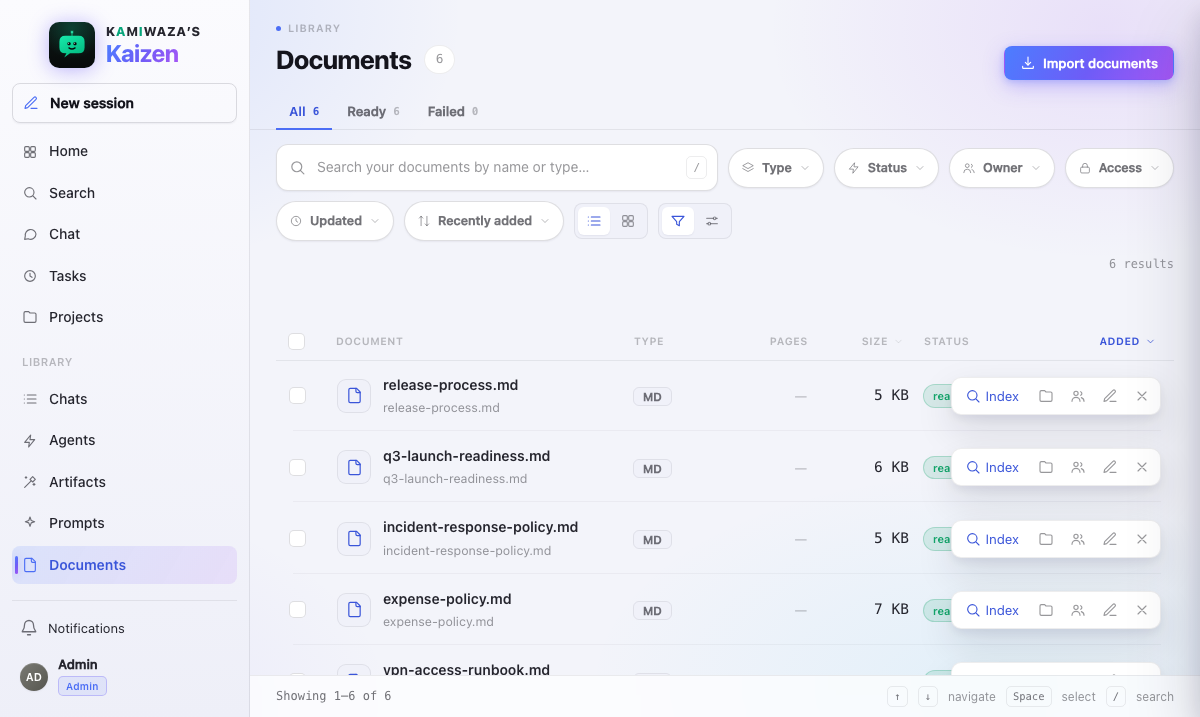
Open Documents in the rail and add a file. Kaizen:
- stores the original safely,
- extracts the text — including from PDFs and Office files, with OCR for scanned pages,
- builds a lexical index, so the document is immediately ready to preview and search.
Folder files and separate imports share transfer slots in this window. Their parts take turns, so a slow file does not force the whole folder to run one file at a time. You can cancel a file while it waits. If an upload waits too long, it fails with a retry message instead of waiting forever.
Background imports and large files upload in parts, with bounded automatic retries for temporary failures when it is safe to continue. If a part write cannot be confirmed before saving begins, cancel that transfer and retry the file to start a new upload. Once saving has started, follow Check upload below while its result is unconfirmed. The document's status is visible while extraction and indexing run; once the upload is stored, a failed import can be retried without re-uploading.
If saving remains unconfirmed, its transfer row offers Check upload. This reads only the original session’s saved result; it cannot begin saving, restart an expired publisher, clean bytes, or guess which library file belongs to it. Retry, Cancel, and Dismiss remain unavailable until that session confirms its result. For a full manifest that has not started saving, an interrupted attempt, or an expired saving lease, Check can offer Resume saving. This separate action rechecks that same session and starts saving its stored parts; it never creates a new upload or sends the file again. A current active publisher still blocks resume, and a late result is accepted with its original duplicate status. A saved file may already appear beside the unresolved transfer. Keep checking the original transfer instead of re-uploading it. If checking still fails, ask your administrator to inspect the original session; a deleted completed result cannot be recreated by this check. If this happens to a file attached in Chat, its attachment message directs you to Documents. Open Documents and select Check upload on the restored Pending upload row. Keep the original transfer until its result is confirmed; do not upload another copy or try to cancel or discard the unconfirmed upload. For an import started in Documents, ordinary Cancel remains available after confirmation while processing runs; it can discard a file created by that session while preserving a reused duplicate. Cancel remains recorded across reload until the original-session discard is acknowledged. If the response is lost, Check can confirm that the original new document is already logically discarded. This means it is unreadable and uncitable; it does not assert that every provider byte has been purged.
Before saving starts, the browser retains a small recovery handle in session storage. After a reload or sign-in, a Pending upload row can check that same session without retaining the file, its name, or its contents. Browser storage must be available; if retaining the handle fails, saving does not start. This preflight failure permits Retry of the retained file after storage is restored, and offers no Check that could begin saving the old session. If a failed storage acknowledgement leaves a handle across reload, the no-file Pending row can only read an existing result; missing results keep the original recovery gap. Cleanup may remain unconfirmed even though saving never started. A confirmed rejection can permit Retry when the original file remains in memory; a reloaded handle has no file to retry. Neither a missing result nor a sign-in failure means the original upload stopped.
If you upload identical bytes under a different file name, both names remain in your library. Repeating the same file under the same name reuses the existing document; files in different folders also remain separate. An upload stores a copy of the bytes. A file name or a shared byte stream alone cannot tell Kaizen which Google Drive, Files, or other provider item it came from, so it cannot refresh that copy from the provider without a verified source connection.
Your library has limits on document count and stored bytes. Uploads from your tabs, devices, and folders share those limits. If two different files compete for the last available space, only one can be added; the other stops with a library-full message and is not automatically retried. Delete documents you no longer need to make room, then retry. If space remains, choose fewer or smaller files that fit it. Re-uploading the same bytes under the same name and folder reuses the existing document even when your library is full, provided its sharing stays the same. A different name, folder, or file content needs room for another document; a retry cannot change the existing document's sharing.
To bring in a folder, select Import documents, then Choose folder. Documents keeps its nested paths. Each folder line shows how many files have uploaded and how many are still in progress, failed, or canceled, including files in subfolders. Folder lines use a colored band and nested folders are indented to stand apart from individual files. Folder icons are larger than file icons; file thumbnails stay compact in the list. Switch to Grid view when you need larger previews.
Folders start closed. Select a folder name to show its files or close it again. Selecting a folder checkbox does not change whether its files are shown.
Index for semantic search
Dense semantic indexing is opt-in. Select Index on a ready document when you want to use it for retrieval-augmented answers in Chat.
Index stays visible on every document that can be indexed — you do not have to point at the row to find it. It is the only way to start indexing from a row, so it does not hide behind a hover the way the document's other row actions do. To index several at once, select the documents and use Index selected.
To index a folder, wait for its uploads to finish, then select Index folder on its line. Kaizen requests indexing for every ready, eligible file you own in that folder and its subfolders, even if a search or filter hides some files. Already indexed files are not queued again. The folder line shows how many files were queued or refused; each visible file shows its own outcome and progress. Clear a search or filter to inspect a hidden descendant's result.
Select the checkbox on a folder line to select its visible files, including files in nested folders. The checkbox does not open the folder. Use the same bulk actions as when you select files one at a time. A partly filled checkbox means only some files in the folder are selected. Collapsing a folder keeps its selection. Search and filters limit which files the folder checkbox changes; files selected before filtering stay selected until you clear them.
Indexing runs in bounded batches and resumes over the document's existing chunks, so a large document never needs to be re-uploaded or duplicated. Your existing library and storage caps still apply.
Indexing covers the whole file, whatever its format. A very large XML, JSON Lines, JSON, CSV, or text file is stored in bigger pieces than a PDF, and each piece is indexed across all of its content — so a match deep inside a large data file is found, not just one near the top.
If indexing cannot start, Kaizen explains why beside the document or folder. A document that is already indexed, is being indexed right now, or has nothing left to index will tell you which. Selecting Index on one document either starts it or explains why not; Index selected queues one bounded server operation and reports each outcome on its document's line or card.
You do not have to wait for indexing to use a document. An unindexed document still answers in Chat by falling back to keyword matching over its chunks — indexing upgrades that to semantic retrieval, which finds passages that match your meaning rather than your wording.
Your uploaded documents are private to you. They are indexed separately from the shared corpus and are never exposed to other members through it.
You can select documents on any Documents layout. Selection is exact: an action applies to every selected item or is unavailable, and filtering the view never silently narrows the action. When an action is unavailable because some selected documents are ineligible, its disabled control shows how many can proceed and a short explanation names the documents that prevent it. Chat with selected opens a fresh draft scoped to every selected ready file, even when a folder contains hundreds of files. The files are not copied or inserted into the question; Chat retrieves relevant passages from the selection when needed.
Chat retains the complete selection across turns and can report its file count, even when only a few filenames appear in Chat.
Supported files
Kaizen extracts text from common formats — PDFs, Word and other Office documents, plain text and Markdown, and more. Scanned or image-only PDFs go through OCR, so you can upload a scan and still ask about it.
You can also import UTF-8 XML, ZIP, TAR, and compressed TAR (.tar.gz or
.tgz) files. Kaizen indexes readable text inside each archive under its entry
path, so Chat can search and cite the matching file. Binary files and nested
archives are not indexed; programs inside an archive are never run. Other
archive formats, including RAR and 7z, are not supported.
If an archive has no readable text or exceeds its extraction limits, its import fails with a reason instead of appearing searchable. XML markup, including attributes, remains searchable. Chat can use the indexed text even when an original archive is too large for code tools to open; those tools still have their separate 8 MiB limit for original files.
Pictures placed inside a document count too. When a report, slide deck, or
spreadsheet carries a photograph, chart, or screenshot, Kaizen reads the words
in that picture and files them with the document under a label such as
[Figure 1 (page 2): chart.png]. That is what lets you search for wording you
only ever saw in a picture, and lets an answer tell you which file and page the
picture is on. A picture with no readable words is still recorded as a figure,
so Kaizen can say the file contains one rather than claim it found nothing.
Kaizen reads the words in an embedded picture, but does not look at the picture itself. If you need Kaizen to describe what a picture shows, attach that picture as its own image file and use a chat model that supports images.
Standalone images can be attached to Chat too. When the selected chat model supports vision, Kaizen sends the authorized image bytes with that turn so you can ask about visible colors, objects, diagrams, or text. If the selected model does not support images—or the file exceeds the safe inline limit—Kaizen says it cannot inspect that image instead of guessing.
Self-contained HTML viewers are searchable too. Kaizen reads their visible text and statically decodes bounded JSON data embedded in script tags or assigned to JavaScript variables. That makes records such as graph nodes and links available for indexing without running the page's JavaScript. Executable script, styling, and binary payloads are not treated as document text.
Ask about a document
Once a document is ready, ask questions grounded in it from Chat. An unindexed document answers by keyword; selecting Index first gives you semantic retrieval, which matters most when your question words differ from the document's. Both an individual document and a selected folder are searchable without inserting the files' complete text into the question. Answers cite the passages they use, just like any other Chat answer.
Retrieval ranks the passages most likely to answer a question; it is not a promise that every file, row, or chunk in a folder was visited. Exhaustive corpus work, such as building an ontology from a folder, needs a checkpointed Task that enumerates the selected corpus. The agent can use a retrieved passage to request the exact current document for read-only code execution, but it cannot manufacture access from a title, path, or document identifier.
Images picked from Documents stay virtual too. If an image has no extracted passages, the assistant cannot inspect its pixels from this selection. Upload the image directly in Chat when your question needs visual inspection.
Attach a document to a chat
Choosing a ready library document or folder attaches a virtual source to the chat. Ask a question to start the turn; Kaizen retrieves relevant passages from the selected files rather than copying their complete text into the message. Remove a chip before sending to exclude that file. Once sent, the selected documents remain in that conversation's retrieval scope; start a new chat to ask about a different selection. The library files themselves are unaffected.
While the chat is yours alone, the assistant can also run code over the original file you picked, from the very first question — for example, to total every row of a CSV rather than summarizing the passages it retrieved. That covers up to 20 files and 8 MB at once. Once anyone else can see the chat — you shared it, or it lives in a Project with other members — code no longer reads the originals you picked from your library: attach a file directly in the chat when the code needs to read it for everyone.
Anything the assistant creates from those originals while the chat was yours alone — a dashboard, a converted file, a computed table — belongs to the chat, not to your library. If you share the chat later, the people you share it with see those results too, even though they cannot open your original files.
There are two ways to start from Documents, and both do the same thing:
- From the row. Point at a ready document in the library and select Use in Chat. Kaizen opens a fresh chat with that document already attached, so you never have to open the file first.
- From the preview. Open a document and select Use in Chat there, which is useful when you want to read a passage before you ask about it.
Use in Chat appears only on a document that is ready. While a file is still uploading or being extracted there is nothing to attach yet, so the action stays away rather than failing. A document that already lives in a shared chat offers Open shared chat instead, which takes you to that conversation.
To bring several documents into one chat, select the individual files or a folder checkbox and use Chat with selected. A large selection appears as one expandable count above the composer; expand it to inspect or remove files.
Selected library documents remain available for follow-up questions through retrieval. For code work on a file, the assistant can request an authorized original from a retrieved passage; selecting a folder does not load every original into the code workspace.
Code can work on at most 20 requested originals totalling 8 MB at once. This does not limit how many library documents you can select for retrieval. If a requested file is still processing or has been deleted, the assistant tells you why it cannot read it.
Use a document in a shared chat
Files uploaded directly into a shared chat become available to every active participant. There is no separate pinning or acknowledgement step. Selecting existing Documents for retrieval does not grant other participants access to your private originals; each member's retrieval scope stays authorized to that member.
The grant stays conversation-scoped. It does not expose the rest of your Documents library, your collections, sibling files, object-store paths, credentials, or your sandbox.
Artifacts created or revised in the chat follow the same rule and appear in active participants' libraries while their room access remains active. Artifact versions stay immutable in history, but the newest owned version follows the shared chat automatically.
Revoking a participant removes their chat and library grants. Deleting or quarantining a source denies future preview, download, and model use while retaining a safe lifecycle record. Resource content is served only through authenticated routes, and only while the requester is still an active participant.
Connector and tool calls always execute with the initiating participant's credentials. Once their safe results or citations are retained in the room, every active participant can read that room content.
Recognize documents while you browse
The Documents list uses compact file icons and image or PDF thumbnails, with larger folder icons so you can scan the hierarchy. Switch to Grid view for larger previews. Grid cards show a bounded content excerpt for text formats; image and PDF previews use the authorized original. Previews load only as a row or card approaches the visible scroll area. A file that is still processing or cannot be previewed keeps a neutral document placeholder. Open the card to inspect the full preview.
Uploads continue in the background when you move to another Kaizen view. Return to Documents during the same app session to see the current transfer or ingestion status, cancel an active transfer, retry a failure, or dismiss a finished row. A full browser reload keeps server-side ingestion running; once the upload has reached document storage, its status comes from the document row rather than the browser transfer list.
Cancel remains available while the document is being imported. It stops the transfer and removes a new document created by that upload. If the upload reused an identical document already in your library, Cancel leaves your existing copy in place. If saving has already begun, cancellation waits for that result before removing the new document. An interrupted start is reported as a failed transfer; it is never automatically restarted. If Kaizen cannot remove a newly created document, Documents shows an error so you can delete the remaining file from the library.
Saving a large file can take up to ten minutes. When saving is already running, Documents waits up to ten minutes and thirty seconds for a confirmed result, including after you press Cancel. It reports success only after confirmation. If saving still cannot be confirmed, check Documents before retrying or deleting; Kaizen does not abort saving while its result is unknown.
Ask the assistant to file one
"Add the runbook to my security collection", "put that document in the Q3 launch project" — the assistant resolves the name you used, files the document and tells you where it went. It files only into collections you own and projects you can write to, and only documents you can already open. Filing the same document again refreshes the entry instead of adding a second copy.
Preview, download, export
You can preview a document's extracted text, download the original, and export where your deployment allows it. Preview and export are subject to the same access checks as everything else — a link you copied does not carry access with it.
Text and CSV previews load bounded, record-aligned pages instead of the whole upload. Use Previous and Next to move through the file. Search in the preview covers the currently loaded page; download the original for exhaustive local search. Closing the preview or opening another file cancels the prior request. A CSV record too large for a safe page is reported rather than split into misleading partial columns.
Put your own logo or picture in an exported document
Upload the picture to Documents first. Then reference it in the document's canvas by its file name, on a line of its own:
__omp_shell("[Kamiwaza logo](kamiwaza-logo.png)")
Word and PDF downloads embed that picture, sized to fit the page. Whatever you write in the square brackets is what a reader sees when the picture cannot be shown, so make it descriptive.
Two kinds of reference deliberately stay text:
- A picture that is not yours, or one that no longer exists, prints its description instead. An export never reaches content your account cannot already open.
- A web address (
https://...) prints its description too. Kaizen does not fetch pictures from the internet while building your document. Save the image to Documents first, then reference it by name.
You never need to paste a picture as a long string of text. If the assistant asks you for one, upload the file and give it the file name instead.
One export embeds up to eight pictures; later references print their descriptions. Word takes PNG, JPEG, and GIF. PDF takes JPEG and PNG, except that a PNG with transparency prints its description in PDF while still embedding in Word. A Markdown download is your text exactly as you wrote it, so it keeps the reference line rather than the picture.
Delete
Deleting a document removes it from your library and stops future retrieval. Retention of derived records follows your deployment's policy; see Data handling & retention.
Files that arrive from a chat
A file you attach in Chat — with the paperclip, by dragging it onto the composer, or by pasting it — is stored in your library like any other document, and behaves the same way afterwards. Detach removes a file from that Chat draft; it does not delete the saved library file. If saving is still unconfirmed when you detach, open Documents and select Check upload on its Pending upload row. That check confirms the original transfer and keeps the saved file in your library.
A pasted screenshot carries no
name of its own, so Kaizen names it by kind, date, and time, for example
pasted-image-20260918-141233.png. See
Paste a screenshot into the composer.
Related
- Collections — group sources and scope retrieval to them.