Tour of the workspace
Kaizen is one screen: a fixed navigation rail on the left, and whatever you are working on filling the rest. Nothing opens in a new tab, and the rail never moves — including on these About pages.
Home
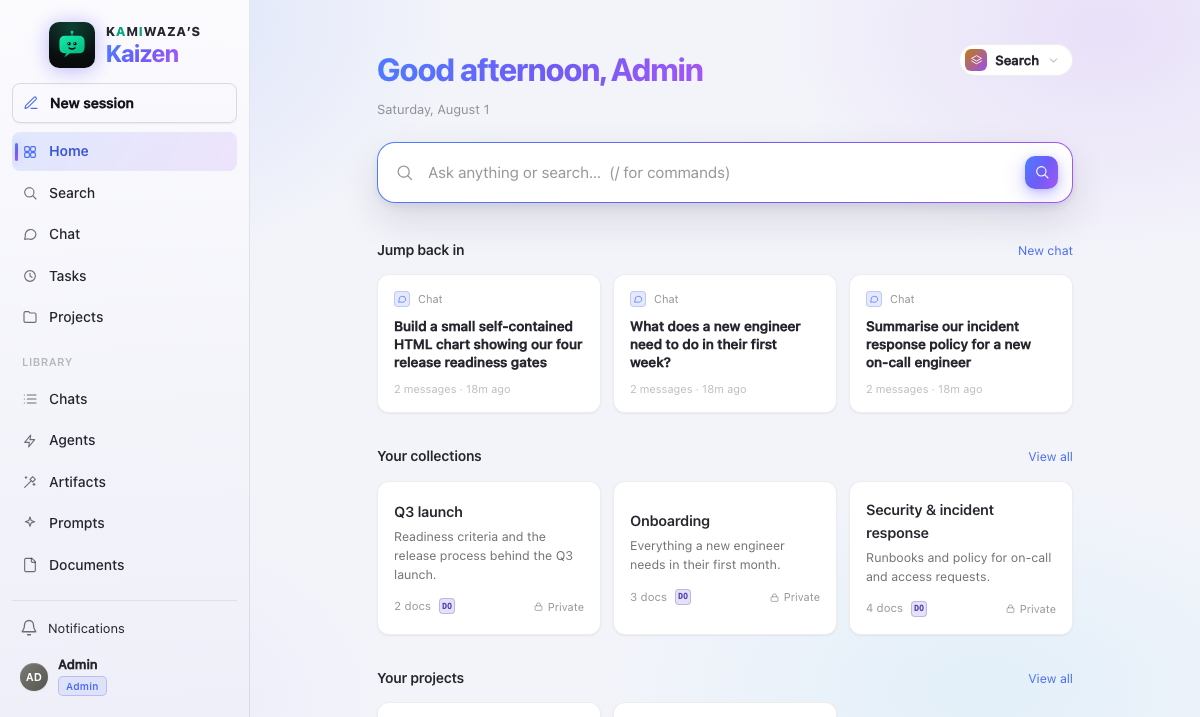
Your landing screen. It puts the two starting actions — ask something, find something — in front of you, alongside recent work so you can resume rather than restart.
The rail
The rail has three parts: primary actions at the top, your Library in the middle, and your account plus notifications pinned at the bottom.
Primary
| Item | What it is |
|---|---|
| Home | The landing screen |
| Search | Ranked source cards, no model in the path |
| Chat | A new session with the assistant |
| Projects | Workspaces grouping related chats and Library items |
| Tasks | Work that runs on a schedule without you |
Projects and Tasks appear only when your deployment enables them.
Library
Everything you accumulate:
| Item | What it holds |
|---|---|
| Chats | Conversation history, including shared and Project-linked chats |
| Agents | Kaizen's defaults, yours, and ones shared with you |
| Artifacts | Runnable outputs Kaizen has built for you |
| Prompts | Saved requests and reusable multi-step flows |
| Documents | Files you have uploaded |
| Collections | Curated groups of sources |
| About | These pages |
The Library screens share one interaction pattern: the same search box, saved views, facet filters, sorting, and keyboard behavior on every one. Learn it once.
Footer
- Notifications — your durable inbox. New unread items surface briefly as a toast; opening the app never replays old ones. See Notifications.
- Account — your email, Settings, theme, and sign out.
The command palette
Press ⌘K (Ctrl-K) anywhere. Type to filter, Enter to go. It reaches every primary surface plus your own prompts, documents, and collections, so it is usually faster than the rail. See Keyboard shortcuts.
Inside a chat
The chat screen has three regions:
- The transcript — messages, streamed answers, inline citations, and the status of any queued or active run.
- The composer — where you type. The + menu attaches files, reaches connectors and tools, and picks sub-agents. Beside it sit the agent picker, the model and effort controls, and the Compression control.
- The workspace panel — opens when a turn produces artifacts, showing each file as it streams and grouping a project's files into a tree when the turn settles.
In a shared chat you also get Participants, showing who currently has the chat open.
Settings
Settings → Preferences holds what is yours alone: theme, default model and effort, and Chat compression. Nothing here affects another member. See Your preferences.
Administrators additionally see an operator area for models, connectors, tools, and deployment settings. Those screens configure the deployment; they are not a window into anyone's content.
Navigation and links
Kaizen runs under a base path on the platform, and every internal link is built against it. Links you copy from Kaizen work for anyone who can already access the target — they carry no capability of their own. Opening a stale link re-checks access rather than honouring what was true when it was copied.