Workroom Manager User Guide (Deprecated)
The standalone Workroom Manager extension that this guide describes is deprecated and will be removed in a future release. Do not deploy it on new installations that provide the built-in Workrooms page.
Workrooms are built into Kamiwaza. Where your installation provides the built-in page, open Workrooms from the navigation sidebar to create, share, and manage workrooms and to launch apps inside a workroom; no extension is required. For the behavior runtimes rely on, see the Workroom Runtime Contract.
The rest of this page is kept for installations that still provide workrooms through the extension, including earlier releases whose quickstart links here and installations configured to use the extension instead of the built-in page. It describes the extension as it shipped; follow it on those installations, and plan to move to the built-in Workrooms page when your release and configuration support it.
Workroom Manager lets you create focused collaboration spaces inside Kamiwaza. Each workroom is an isolated environment with its own classification banner, membership, data, and deployed applications. Use workrooms to organize work by mission, project, or analysis effort, and share them with teammates who need access.
Getting Started
Workroom Manager is available as an extension in your Kamiwaza deployment. Open it from App Garden or navigate directly if your administrator has provided a URL.
When you first open Workroom Manager, you see the Your Workrooms library. This is your home view — it lists every workroom you own or have been invited to.
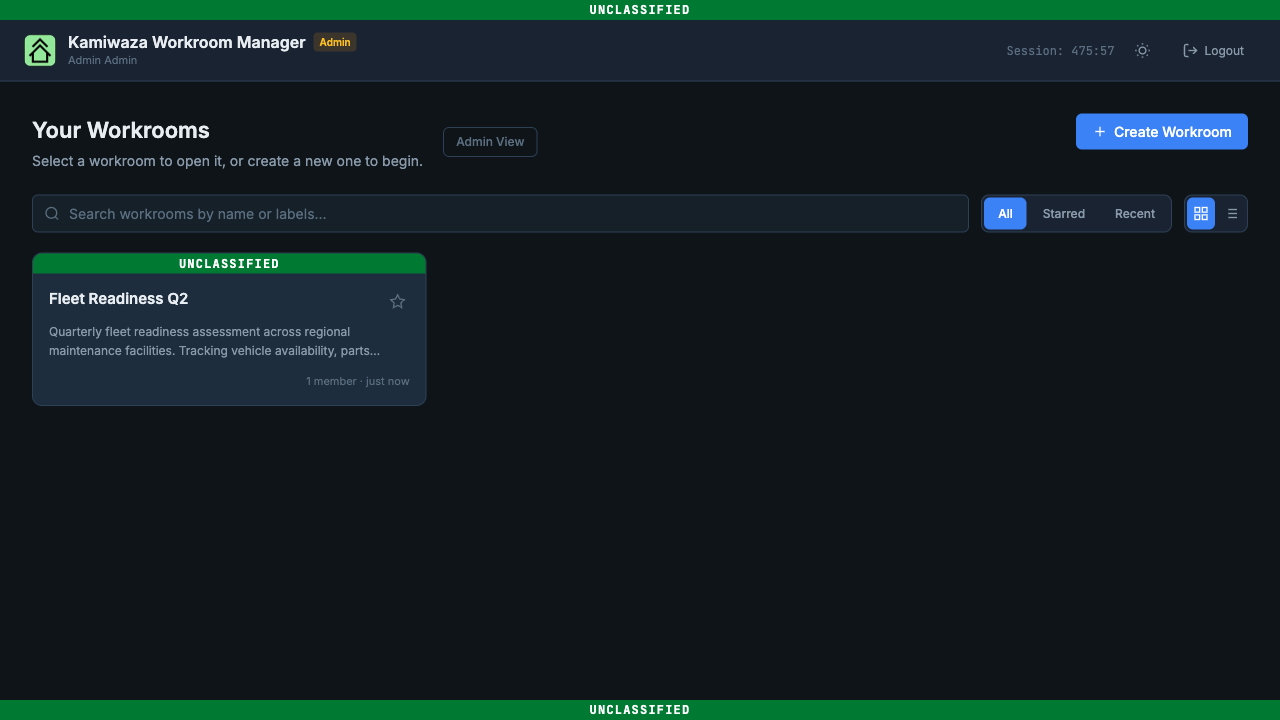
From the library you can:
- Search workrooms by name or labels
- Filter by All, Starred, or Recent
- Toggle between grid and list views
- Create a new workroom with the + Create Workroom button
Administrators also see an Admin View button that shows all workrooms across all users with owner information.
Creating a Workroom
Click + Create Workroom to open the two-step creation wizard.
Step 1: Details
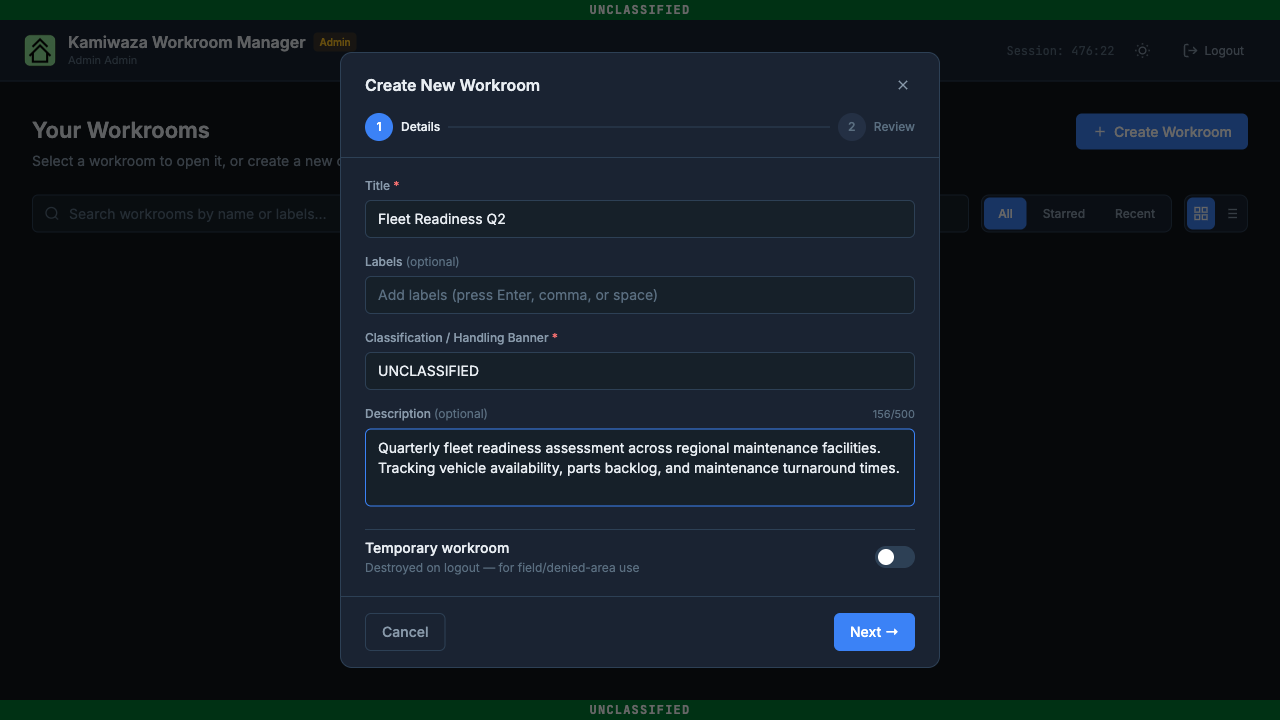
| Field | Required | Description |
|---|---|---|
| Title | Yes | A short, descriptive name for the mission or analysis effort. |
| Labels | No | Freeform tags to help organize and search workrooms. Press Enter, comma, or space to add each label. |
| Classification / Handling Banner | Yes | The handling marking displayed on the workroom (e.g., UNCLASSIFIED, SECRET//NOFORN). |
| Description | No | Brief description of the objective or context (up to 500 characters). |
| Temporary workroom | No | Toggle on for short-lived sessions or field/denied-area use. Temporary workrooms are destroyed on logout. Leave off for persistent workrooms that remain until explicitly deleted. |
Step 2: Review
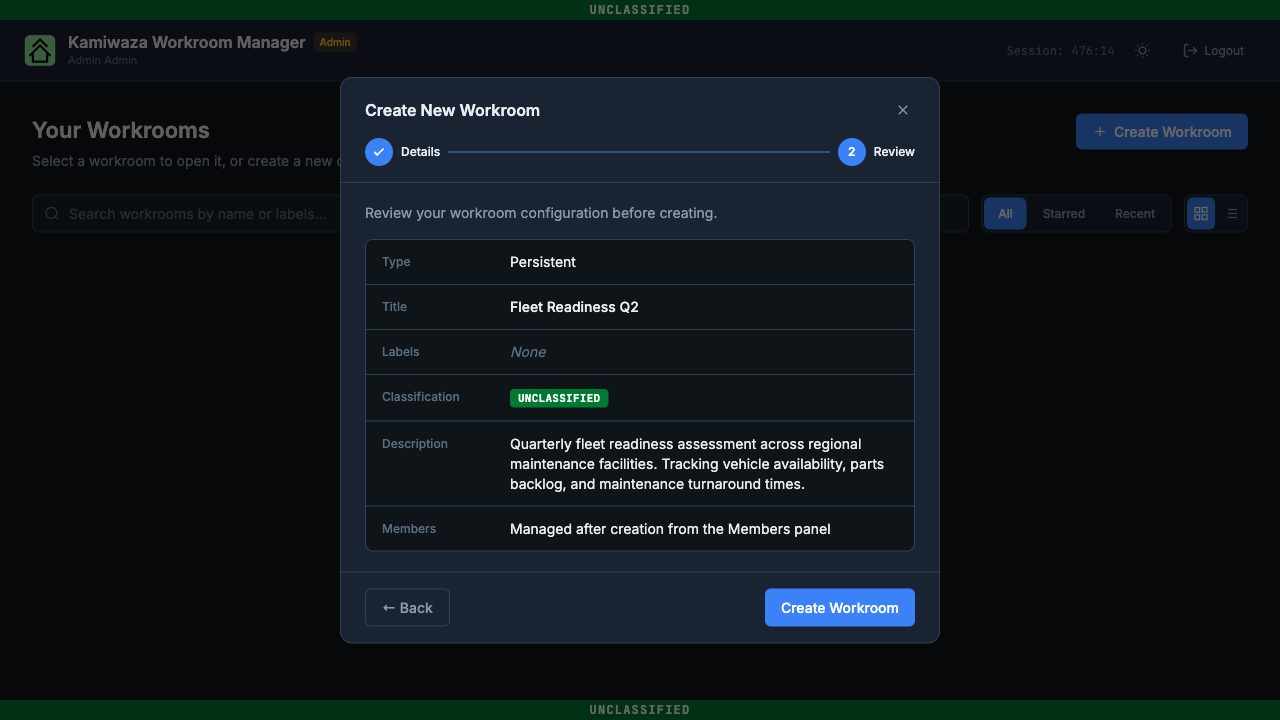
Review the summary table to confirm your settings. The workroom type (Persistent or Temporary) is locked after creation and cannot be changed later.
Click Create Workroom to finalize. Your new workroom appears immediately in the library.
Note: Workrooms are created with only you as a member. Add collaborators from the workroom detail view after creation.
Workroom Details
Click any workroom card to open the detail panel.
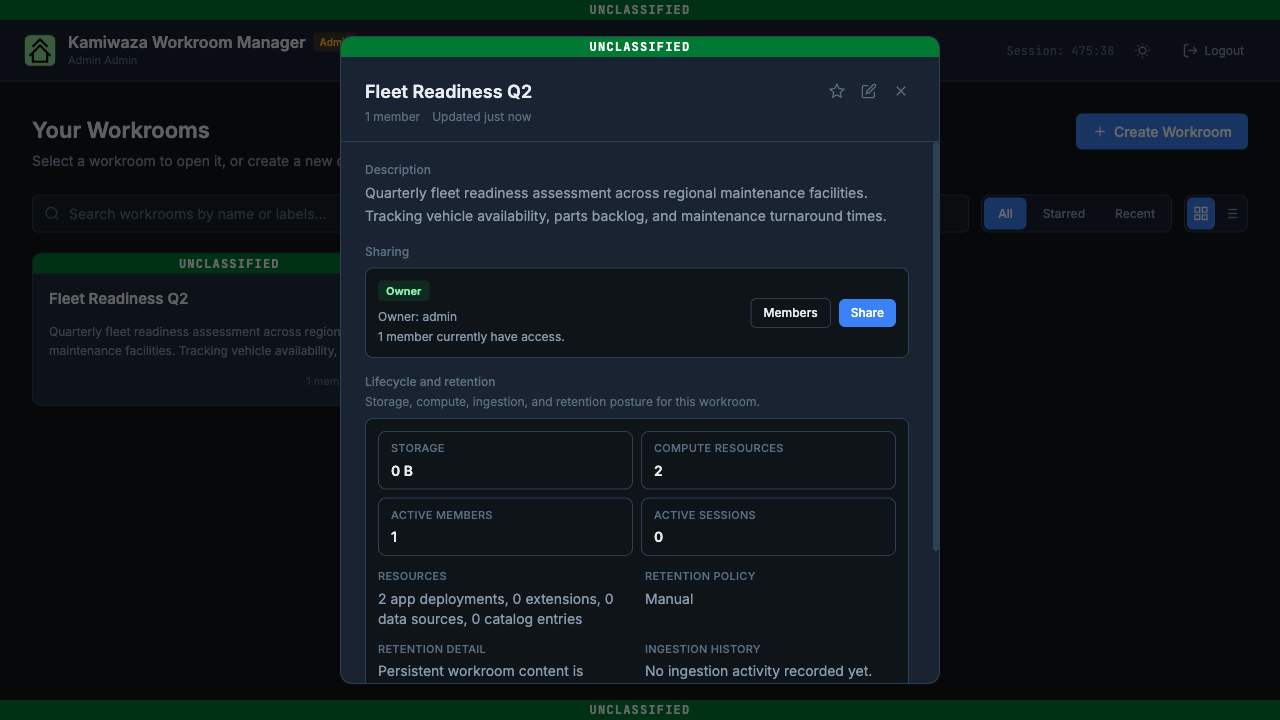
The detail panel has up to five sections:
Description
The workroom title, classification banner, and description you provided at creation.
Labels
If the workroom has labels, they appear here as tags. This section is only visible when labels have been added. Labels help you organize and search for workrooms as your library grows.
Sharing
Shows the current owner, total member count, and quick-access buttons:
- Members — view the full member roster
- Share — invite a new member
Lifecycle and Retention
An at-a-glance summary of workroom resource usage and platform signals. These values are intended as operational cues, not as a full accounting report. Exact availability and meaning can vary by deployment and enabled services.
| Metric | Description |
|---|---|
| Storage | Indexed data footprint currently associated with the workroom. This is not a full accounting of every backing volume or runtime artifact. |
| Compute resources | Number of compute resources allocated |
| Active members | Members currently using the workroom |
| Active sessions | Sessions currently bound to this workroom |
| Resources | Breakdown of app deployments, extensions, data sources, and catalog entries currently attributed to this workroom |
| Retention policy | The workroom's retention policy as configured by the platform. |
| Retention detail | Describes when workroom content is retained or removed. |
| Ingestion history | When data was last ingested into this workroom. Ingestion errors are highlighted if any occurred. |
Apps
Lists applications available in the workroom. Click Launch to start an application (such as Kaizen) in this workroom's context, or Open if it is already running.
When Kaizen is launched from a shared non-global workroom, authorized members see the same workroom-scoped agents, conversations, uploaded data, and generated outputs according to role. The Global Workroom remains a special system workspace and does not automatically expose personal Kaizen history across users.
For details on using Kaizen, see the Kaizen User Guide.
Sharing a Workroom
From the workroom detail panel, click Share to invite a collaborator.
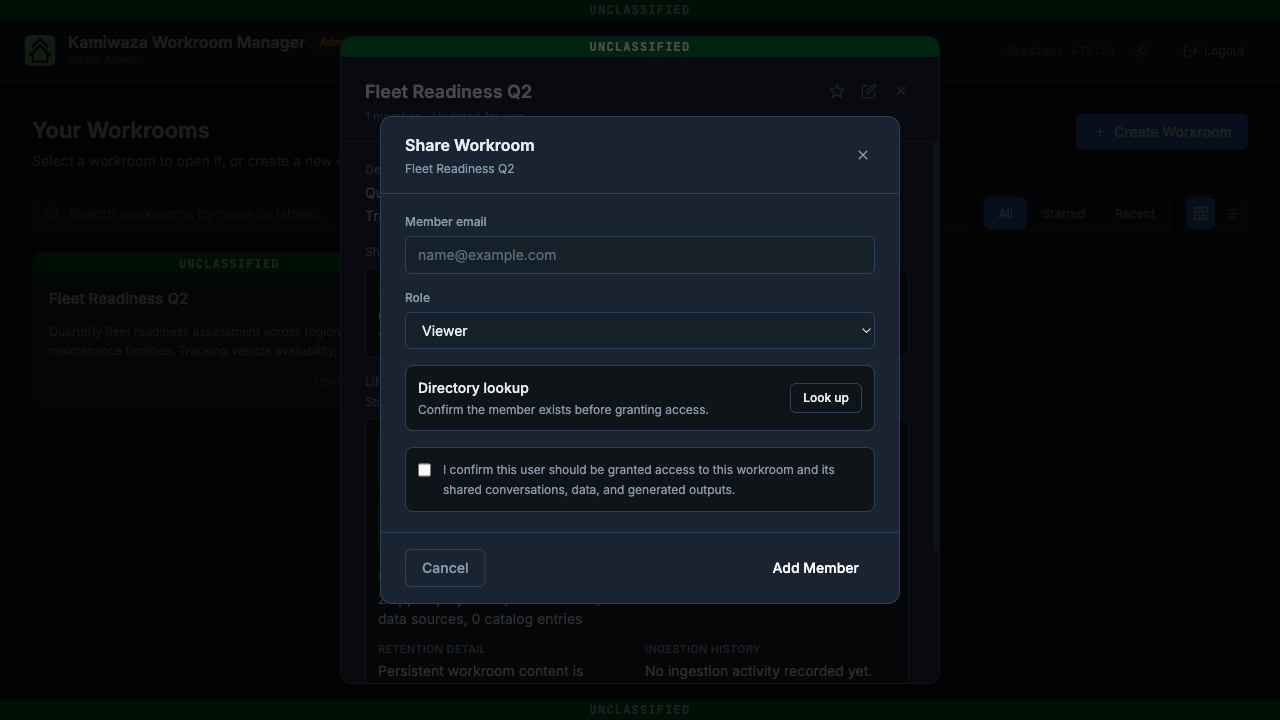
Adding a member
- Enter the member's email address.
- Select a Role:
- Viewer — read-only access to the workroom and its contents.
- Contributor — can participate in the workroom and its applications.
- Click Look up to verify the member exists in the directory. This confirms the user account is valid before granting access.
- Check the attestation checkbox: "I confirm this user should be granted access to this workroom and its shared conversations, data, and generated outputs."
- Click Add Member.
The attestation step ensures that access is granted intentionally. You must confirm the checkbox before the Add Member button becomes active.
Managing members
Click Members from the workroom detail panel to view the current roster.
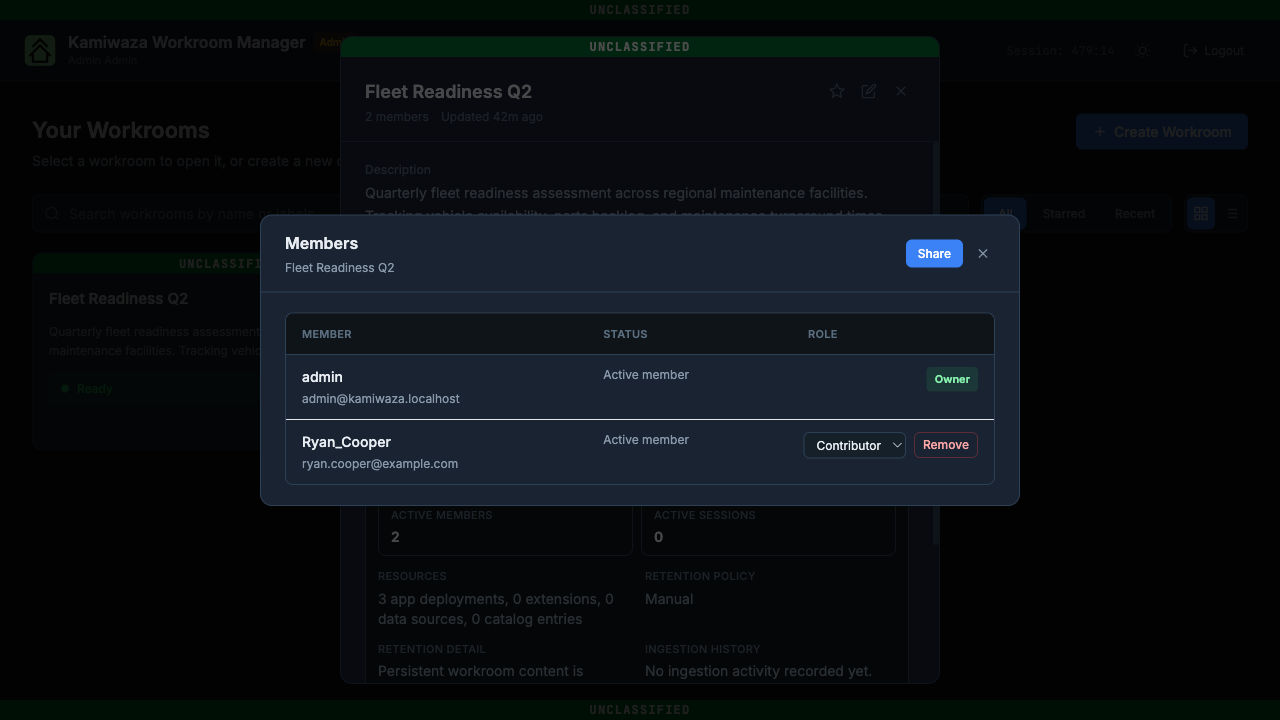
The members table shows each member's name, email, status, and role.
Owners can use this panel to change non-owner roles, remove members, and transfer primary ownership to another member when responsibility for the workroom needs to change hands.
Workroom roles
| Role | Capabilities |
|---|---|
| Owner | Full control — update settings, manage members, transfer ownership, share the workroom, and delete the workroom. In Kaizen, Owners can also continue shared workroom conversations and create or update shared agents. Assigned to the workroom creator. |
| Contributor | Participate in the workroom, use deployed applications, and collaborate with other members. In Kaizen, Contributors can create shared agents and conversations visible to other workroom members. |
| Viewer | Read-only access to the workroom and its contents, including shared Kaizen history and generated outputs. |
Owners can change a member's role between Contributor and Viewer, remove a member entirely, or transfer ownership from the Members panel. If you remove a member who has an active session, the app may ask for confirmation before proceeding.
In shared non-global workrooms, membership is the sharing boundary — you do not need to configure per-conversation or per-agent sharing inside Kaizen for another authorized member to see shared workroom history. Credential sharing remains separate from content sharing; workroom membership does not automatically grant reuse of another member's personal credentials unless explicitly shared through a supported credential path.
Collaboration Status
Workroom Manager surfaces collaboration status so you can tell whether a workroom is currently in use before making changes.
You may see:
- An active-member count in the workroom library card or detail view
- Per-member active session counts in the membership view
- Warnings when you try to remove a member who still has an active session
These indicators help owners understand whether a workroom is currently in use before they change access or remove participants.
For the public runtime, membership, and collaboration-stream contract behind these behaviors, see the main-docs Workroom Runtime Contract.
Starring Workrooms
Click the star icon on any workroom card or in the detail panel header to mark it as a favorite. Starred workrooms appear when you select the Starred filter in the library, giving you quick access to the workrooms you use most often.
Editing a Workroom
Click the edit icon (pencil) in the workroom detail panel header to open Workroom Settings.
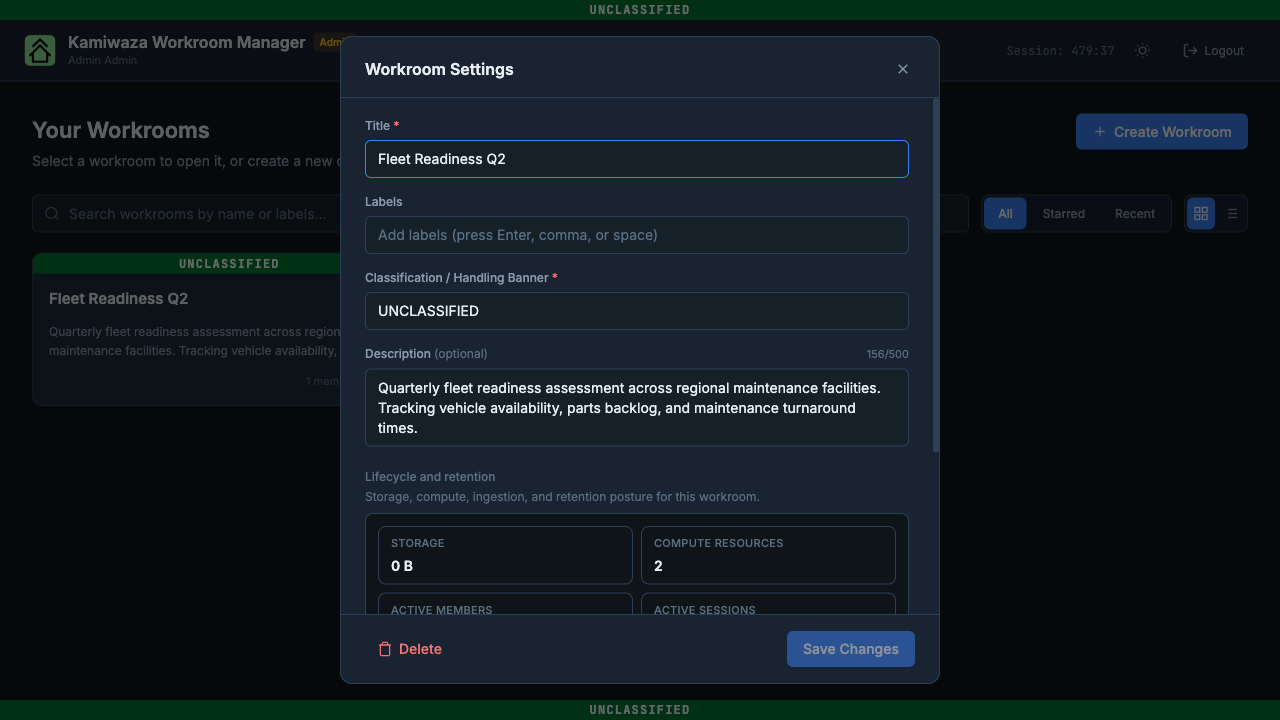
You can edit:
- Title
- Labels
- Classification / Handling Banner
- Description
The settings dialog also shows the lifecycle and retention metrics for the workroom. The workroom type (Persistent or Temporary) cannot be changed after creation.
Click Save Changes to apply your updates.
Deleting a Workroom
From the Workroom Settings dialog, click the red Delete button at the bottom left. A confirmation dialog appears:
"Are you sure you want to delete [workroom name]? This action cannot be undone."
Click Delete Workroom to confirm. Deletion removes the workroom and all associated data permanently.
Administrators can also delete any workroom from Admin View by clicking the workroom card and selecting the delete icon in the detail panel header.
Lifecycle Notes
Keep these workroom behaviors in mind:
- Temporary workrooms are designed for short-lived sessions and are destroyed on logout.
- Persistent workrooms remain in the library until explicitly removed by an owner.
- Lifecycle states such as archived or deleting can temporarily disable editing and member changes while the workroom is read-only.
Archive, restore, lifecycle-summary, and export-bundle capabilities exist in the underlying Kamiwaza workroom APIs. As these become available in the Workroom Manager interface, this guide will be updated.
Admin View
Platform administrators see an Admin View button on the main library page. Toggling Admin View shows:
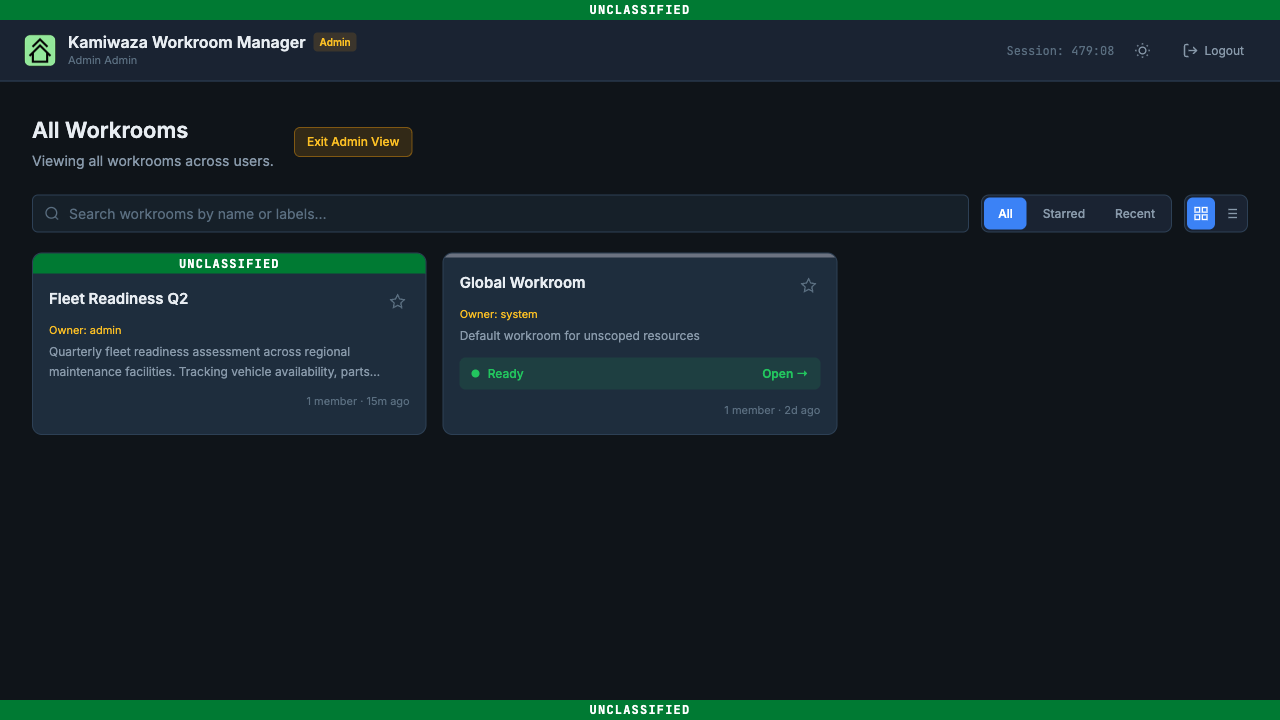
- All workrooms across all users, not just your own
- Owner information for each workroom
- The Global Workroom (the default system workroom for unscoped resources)
- Delete capability for any workroom except the Global Workroom, which cannot be deleted
Click Exit Admin View to return to your personal workroom library.
Note: Admin View is only visible to users with administrator privileges.
Tips
- Use descriptive titles — titles like "Fleet Readiness Q2" are easier to find than generic names.
- Add labels — labels make workrooms searchable as your library grows.
- Check membership before sharing sensitive data — review the Members panel to confirm who has access.
- Use temporary workrooms for short-lived tasks — they clean up automatically on logout.
Troubleshooting
I cannot launch Kaizen
Check the deployment status in the workroom detail panel under Apps. If the status does not become Ready, review the Workroom Manager or Kaizen deployment logs. For platform-level logs, see Observability.
I cannot add or remove members
Only workroom owners can change membership. If the workroom is in a read-only lifecycle state (e.g., archived or deleting), member changes may be blocked until the state clears.
I cannot see the full member roster
Non-owners can view the member roster but cannot change roles or remove members. If the roster is not loading, check your network connection and ensure the workroom is in an active state.
A workroom delete or edit failed
Retry the operation once. If the failure persists, check the Workroom Manager deployment logs for errors near the time of the action. Include the workroom name and any visible error message if you escalate the issue.