GUI Walkthrough
The following walkthrough is based on the Kamiwaza 1.0.0 user interface. It covers navigating the Kamiwaza admin console to search for a model, download model files, and then deploy and use an inference endpoint.
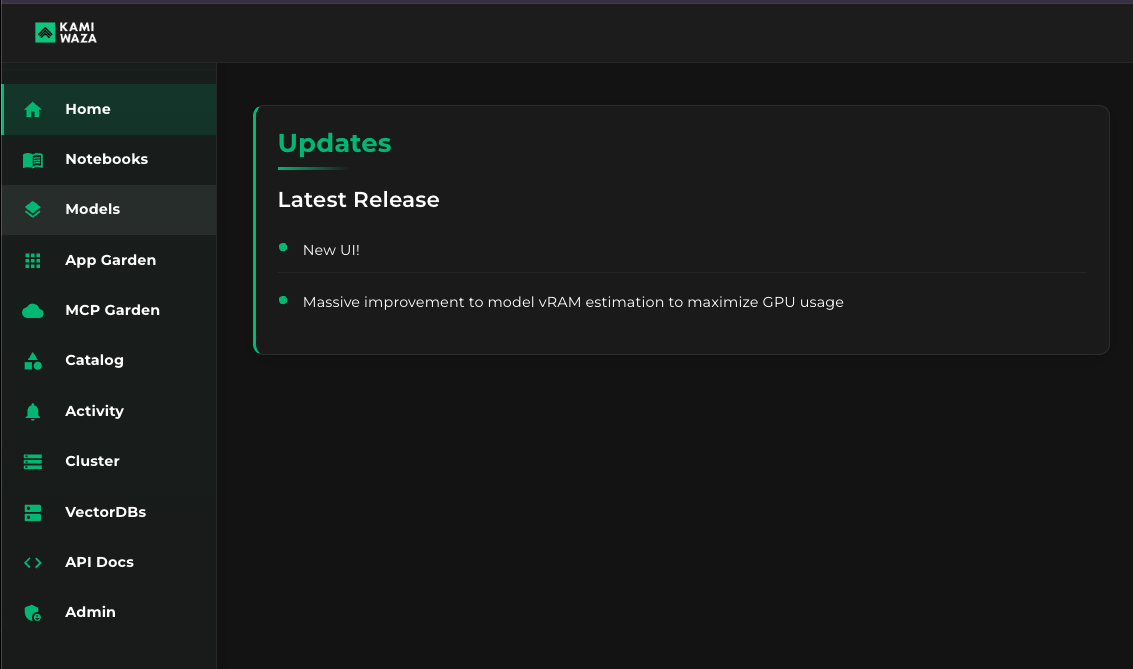
Step 1: Find and click the Models menu in the sidebar
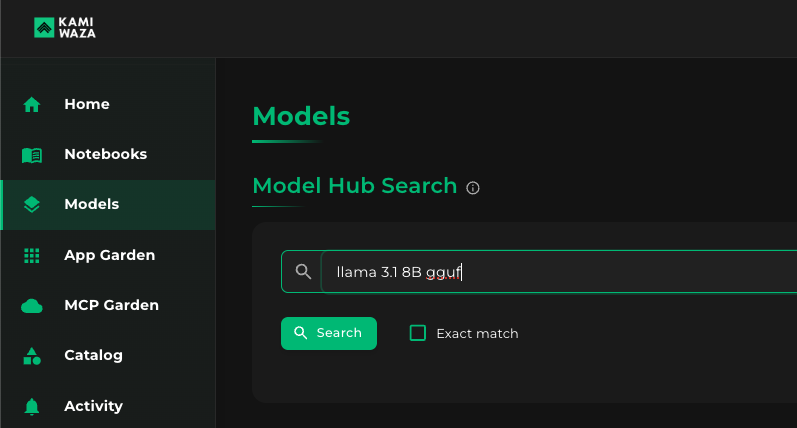
Step 2: Under Model Hub Search, type keywords for your desired model
This example looks for a GGUF of Llama3.1 8B Instruct, so typing a few of its keywords narrows the results.
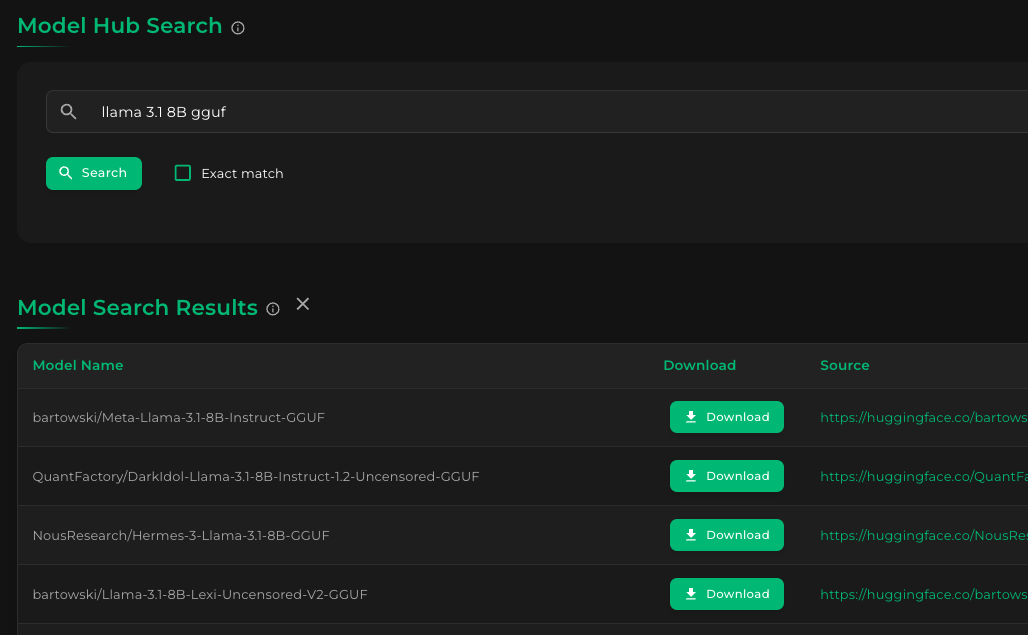
Clicking the Search button will show the results, like this:
Step 3: Download models files from chosen model
From the results, choose the Bartowski GGUF. Clicking the Download button for bartowski/Meta-Llama-3.1-8B-Instruct-GGUF results in the following:
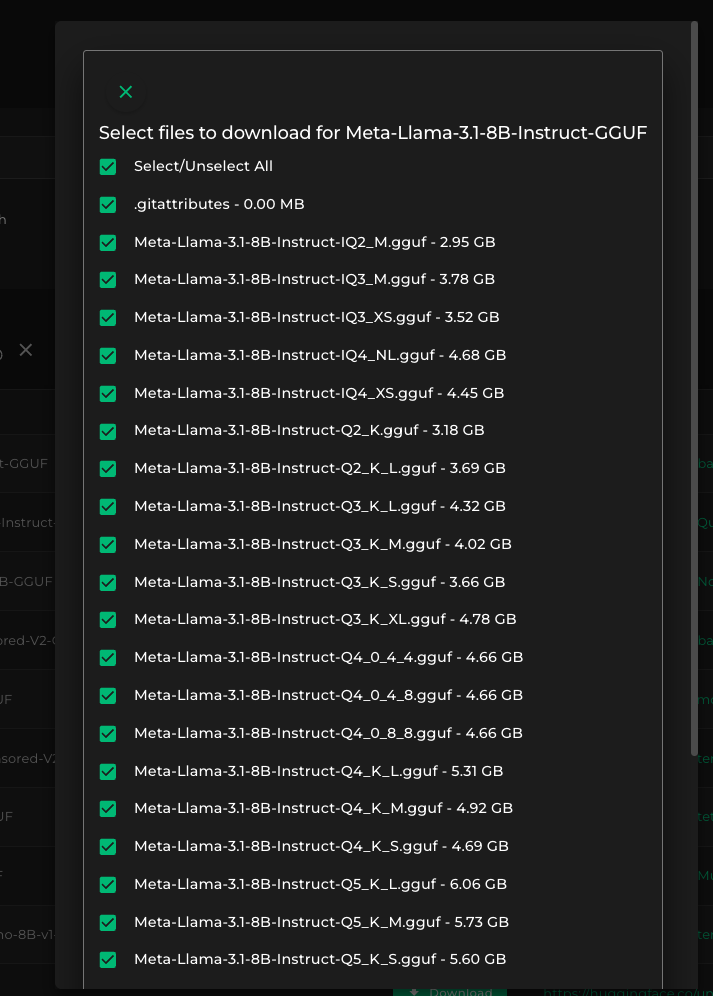
This example downloads GGUF models for a llamacpp inference engine deployment. Unlike normal Hugging Face models (safetensors), only one or two files are required — just the specific quantized model.
For this example, uncheck everything and choose only the Q8_0 variant. Click Select/Unselect" all to uncheck all files, then scroll down and click the file marked Q8_0 (near the very bottom), and then click Download Selected Files to download the 8-bit quantized version of Llama 3.1 8B Instruct in GGUF format.
NOTE: Normal Hugging Face models (non-GGUF) usually require all files in order to serve a model (safetensors, config, tokenizer, and so on), which is why everything is pre-checked. In that case, scroll down and click the Download Selected Files button.
Step 4: Check the model files after the download
After the download, your Kamiwaza models console will look something like this:
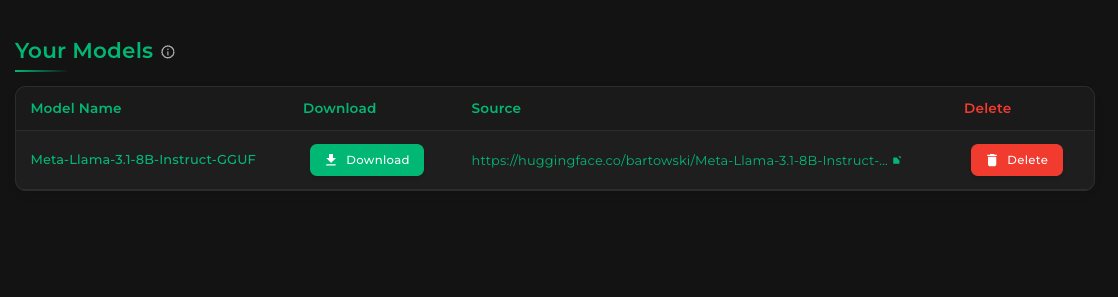
Your downloaded model is displayed. To view the specific files downloaded for this model, click the name of the model in the list. You will see a screen that looks like this:
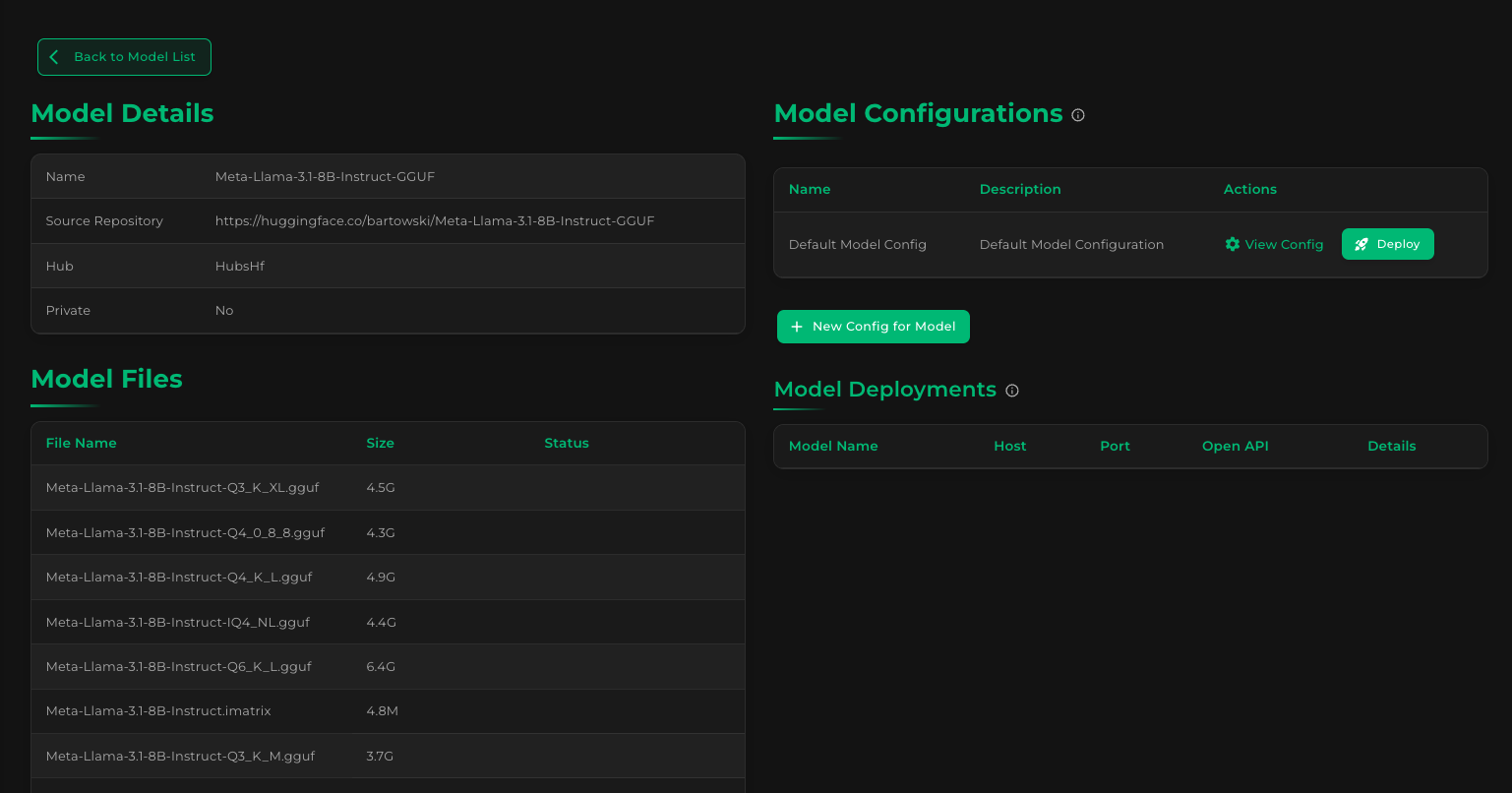
You will notice most of the files under Model Files have an empty status, since they were not downloaded. Scroll down to see if the 8-bit quantized GGUF is present, though:
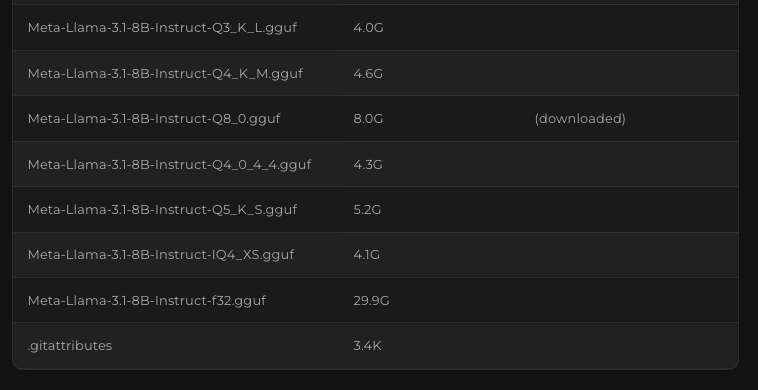
As expected, the Q8_0-quantized GGUF is there. Since it is already marked as "downloaded", it is ready to deploy.
Step 5: Deploy a model for serving
The Deploy button appears at the upper right area of the Model Details screen, under Model Configurations:
Kamiwaza creates a default config when a model is downloaded, to simplify the deployment experience.
Click "Deploy" to launch an instance. When the spinner finishes, click Back to Model List to go back to the main Models screen.
Step 6: Testing the deployed model endpoint
In the main Models screen, under Model Deployments, you will see a new entry for the recently deployed Llama 3.1 8B model:
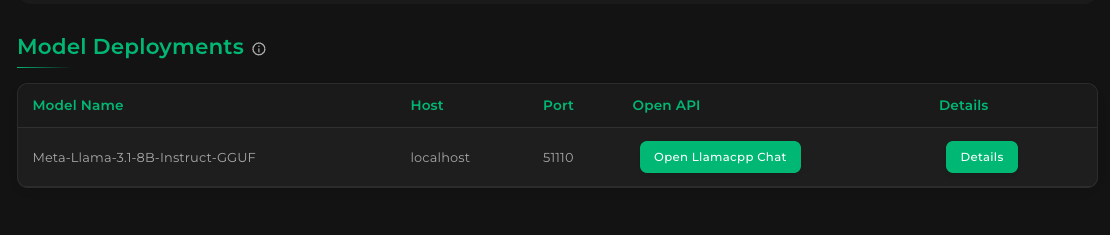
To test the model, click "Open Llamacpp Chat". Your browser will open a chat application running against the deployed model:
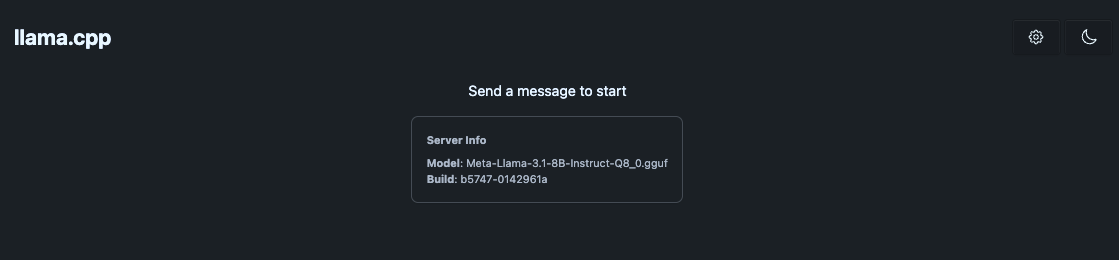
Send a test message to validate that the LLM endpoint is working:
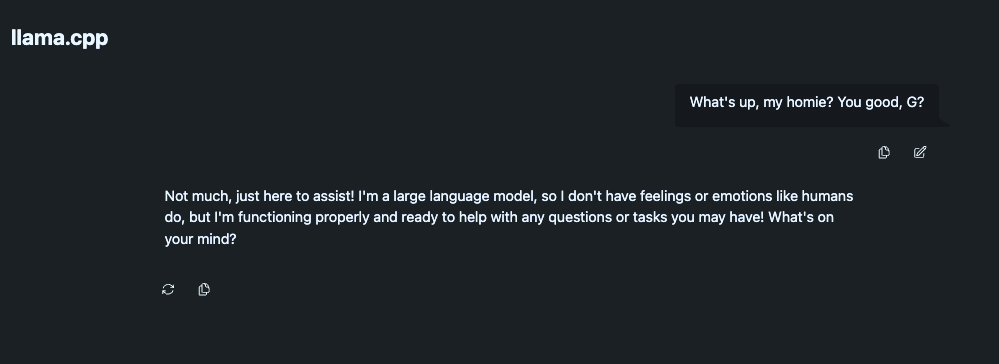
Perfect! If you see a response like that, then the inference endpoint is working as expected.
🎉 You have successfully deployed your first model on Kamiwaza! 🎉