Quickstart
Get up and running with Kamiwaza in just a few minutes! This guide will walk you through starting the platform, deploying your first AI model, and launching a real application from the App Garden.
Prerequisites
Before you begin, make sure you have:
- Kamiwaza installed and configured (see our Installation Guide)
- At least 16GB of available RAM
- A stable internet connection for downloading models
Step 1: Start Kamiwaza
First, let's get the Kamiwaza platform running on your system.
For Community Edition (Ubuntu .deb package)
If you installed via the .deb package, Kamiwaza should start automatically as a system service. You can check the status with:
kamiwaza status
If it's not running, start it with:
kamiwaza start
For Manual Installations
Navigate to your Kamiwaza installation directory and start the platform:
cd /path/to/kamiwaza
bash startup/kamiwazad.sh start
Verify Kamiwaza is Running
Open your web browser and navigate to:
- Frontend: https://localhost
- API Documentation: http://localhost/api/docs
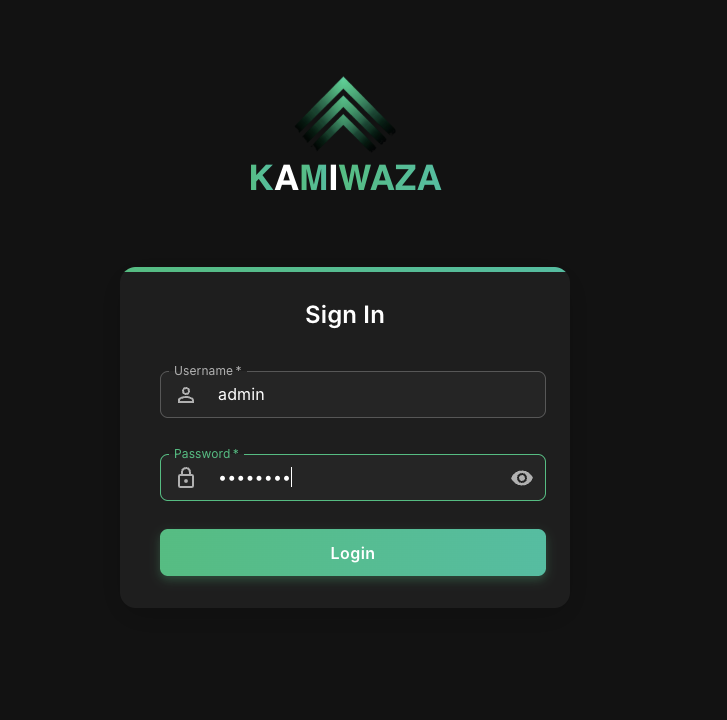
You should see the Kamiwaza interface load successfully. Use the following credentials in the Sign In screen:
- Username:
admin - Password:
kamiwaza
Step 2: Deploy Your First Model
Now let's deploy a small, fast language model that's perfect for getting started.
Access the Models Section
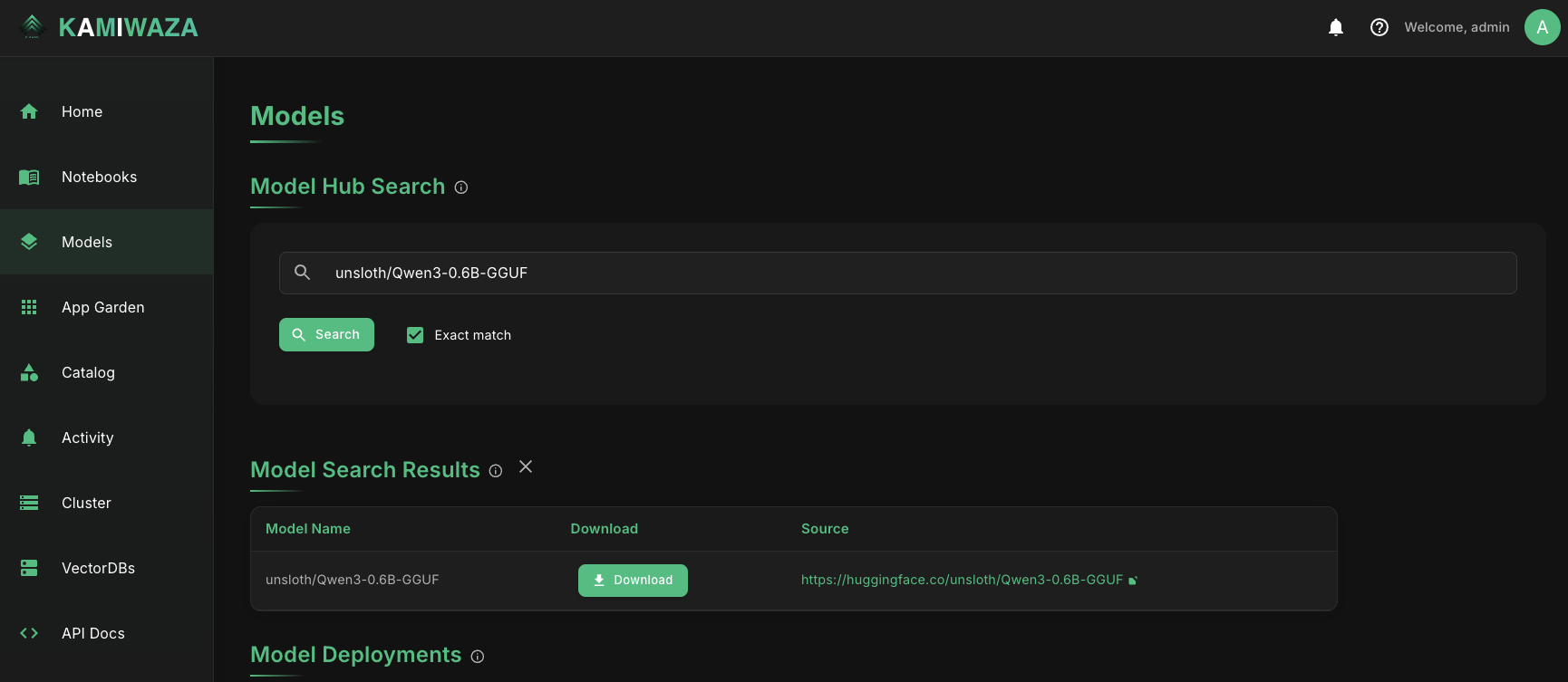
- In the Kamiwaza frontend, navigate to the Models section
- Enter
unsloth/Qwen3-0.6B-GGUFinto the search field, clickExact match, then click Search.- Click the "Download" button, unselect all the files, just select the box next to
Qwen3-0.6B-Q6_K.gguf - 495.11 MB - Click "Download Selected Files".
- You should now see the file downloading in a new pop-up modal.
- Click the "Download" button, unselect all the files, just select the box next to
- Deploy the model.
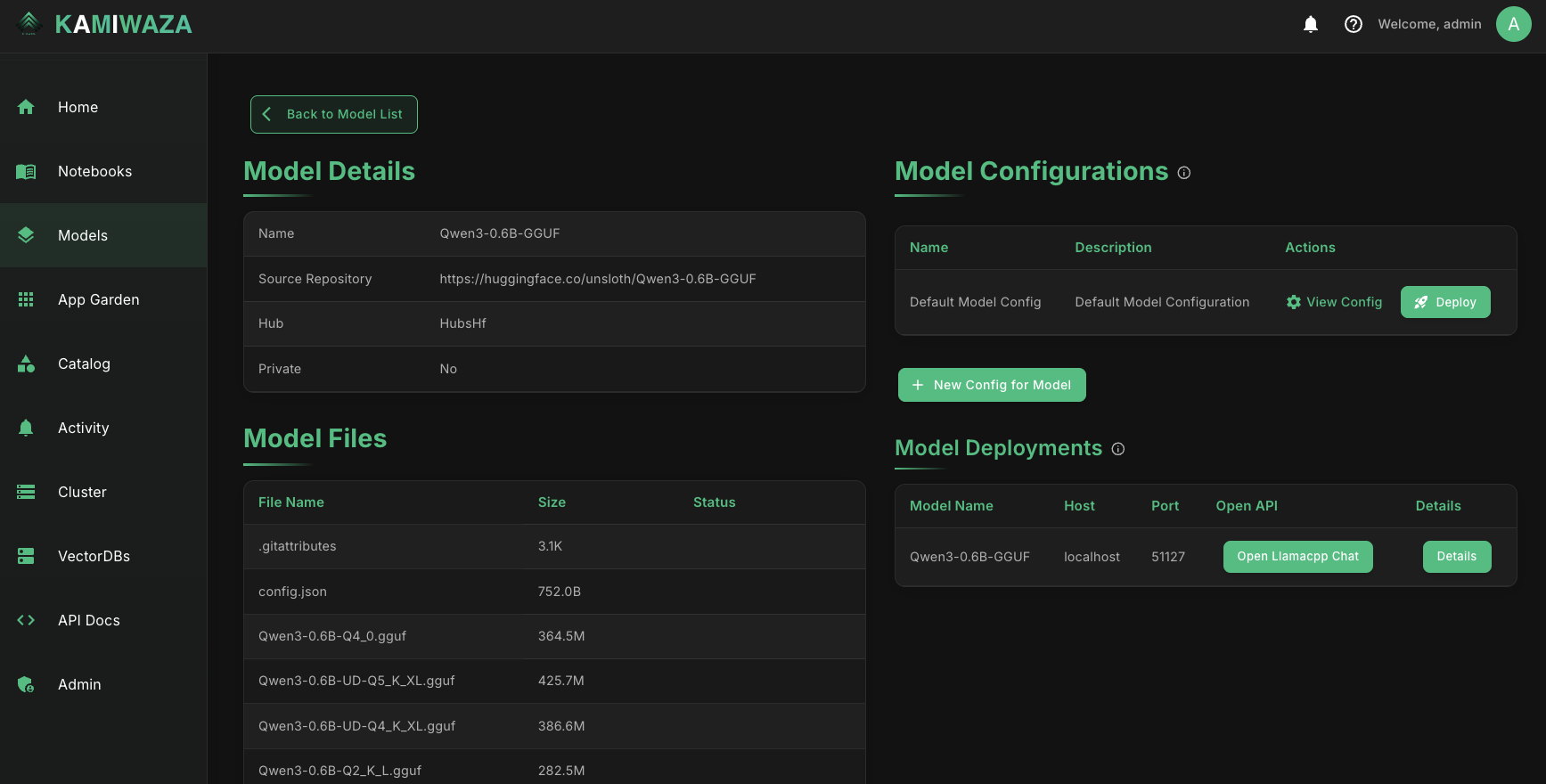
- Scroll down to the "Your Models" section, and click the name of the model (
Qwen3-0.6B-GGUF) - On the next screen, look for the "Deploy" button in the upper right (under Model Configurations) and click it.
- After a few moments, you will see the model appear under "Model Deployments."
- Scroll down to the "Your Models" section, and click the name of the model (
Review
For the first deployment, we deployed a modern large language model:
- Model:
Qwen3 0.6B(very light wieght, suitable for basic conversation)- Note that this is a GGUF-quantized version of the model suitable for CPU-based inference
- Engine:
llamacpp(CPU-friendly)
Step 3: Launch an AI Chatbot from the App Garden
Now let's use your deployed model in a real application from the App Garden.
Access the App Garden
- Navigate to the App Garden section in the Kamiwaza interface
- Browse the available applications
- Look for the "AI Chatbot" app
[Screenshot placeholder: App Garden interface showing available apps]
Configure and Launch the Chatbot
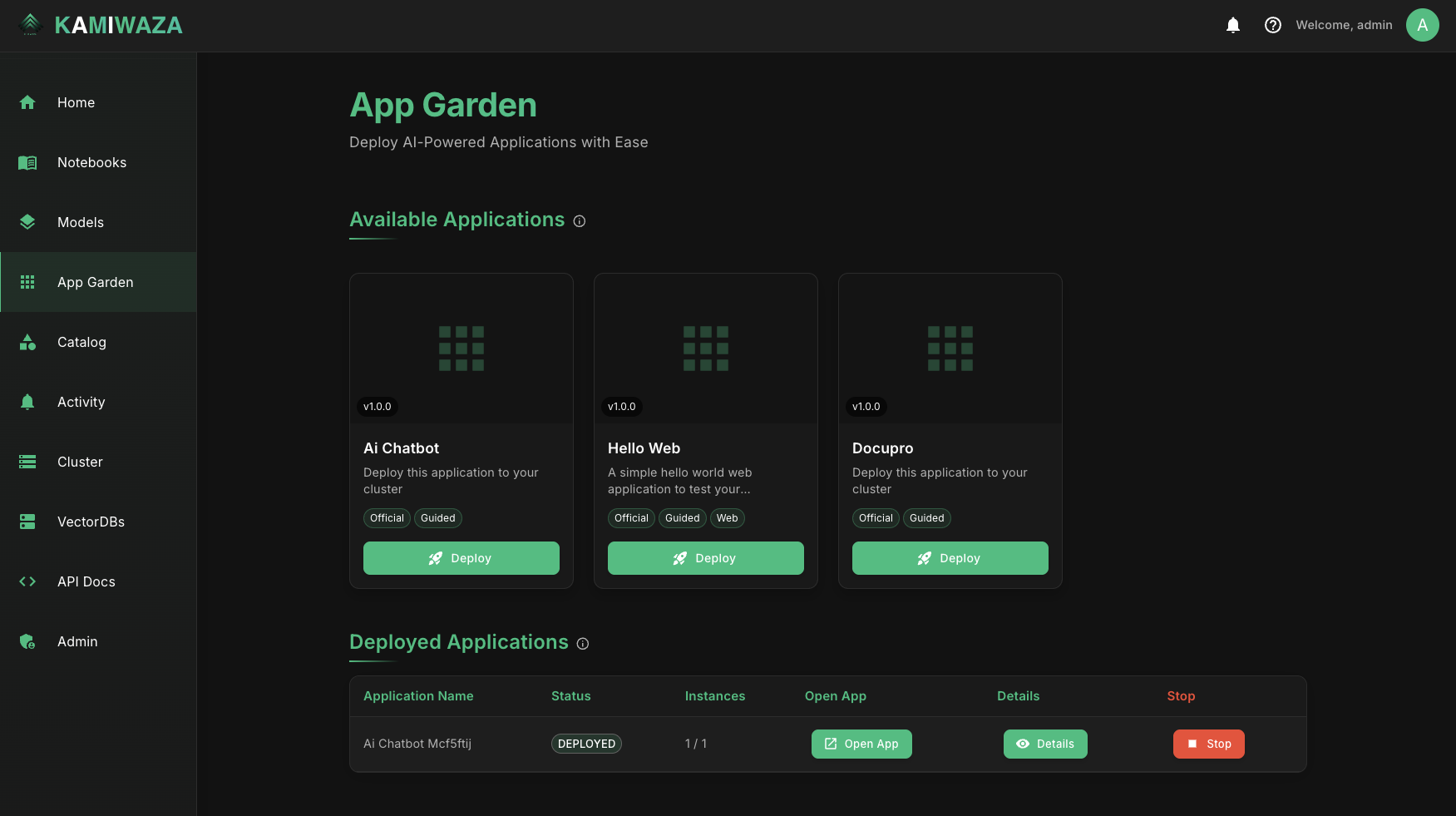
- Click on the AI Chatbot app's "Deploy" button
- In the configuration screen, keep the default configuration, and click "Deploy"
- Click "Launch App"
Access Your Running Chatbot
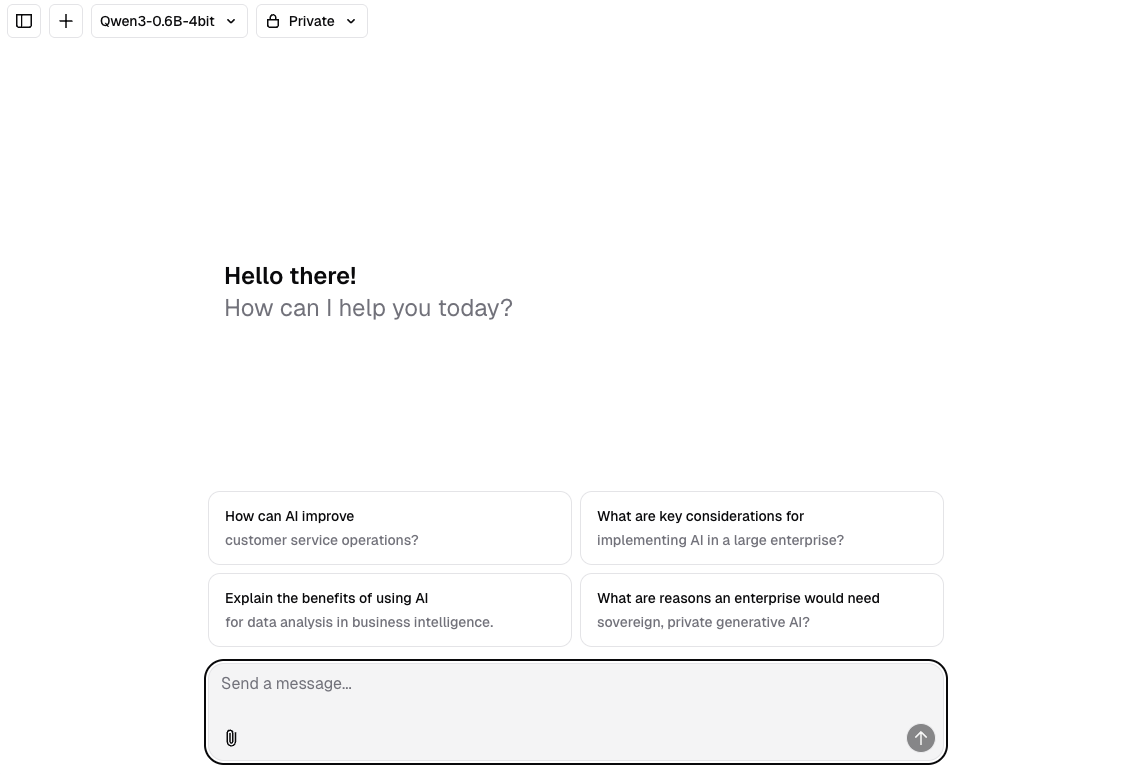
- Once launched, click the "Open App" button in the deployed app listing,
- This will open the app in a new browser tab.
- It will automatically use your deployed model.
Try Your Chatbot
You now have a fully functional AI-powered chat application!
Next Steps
Congratulations! You've successfully:
✅ Started Kamiwaza
✅ Deployed your first AI model
✅ Launched a real application from the App Garden
Explore More
Now that you have the basics down, here are some next steps to explore:
- Try Different Models: Deploy larger, more capable models
- Explore More Apps: Check out other applications in the App Garden
- Learn the Architecture: Understand how Kamiwaza works under the hood
- Use the SDK: Build custom applications using the Kamiwaza Python SDK
- Set Up Your Data: Connect your own data sources for RAG applications
Need Help?
If you run into any issues:
- Check the troubleshooting section for common problems
- Join our Discord community for real-time help
- Contact our support team
What You've Learned
In this quickstart, you've experienced the core Kamiwaza workflow:
- Model Management: How to deploy and test AI models
- App Garden: How to launch pre-built applications
- Integration: How models and apps work together seamlessly
This same pattern scales from simple chatbots to complex enterprise AI applications. Welcome to Kamiwaza!