AWS Transcribe Engine User Guide
AWS Transcribe provides enterprise-grade, managed speech-to-text capabilities through Kamiwaza's unified transcription API. Audio is processed by AWS's cloud service, eliminating local compute requirements.
Prerequisites
Before registering an AWS Transcribe endpoint, make sure:
- Your AWS account has Transcribe enabled in the region you plan to use.
- You have an S3 bucket that Kamiwaza can write to for batch transcription (audio is staged there briefly during processing).
- You have a long-lived IAM access key whose attached policy grants the permissions below.
- Outbound HTTPS from the Kamiwaza control plane is permitted to your S3 bucket and to both AWS Transcribe endpoints:
transcribe.<region>.amazonaws.com— batch transcription jobs.transcribestreaming.<region>.amazonaws.comon port 8443 — real-time streaming. Egress-restricted networks must whitelist the streaming hostname separately, otherwise streaming requests will fail to connect.
Minimum IAM policy:
{
  "Version": "2012-10-17",
  "Statement": [
    {
      "Effect": "Allow",
      "Action": [
        "transcribe:StartTranscriptionJob",
        "transcribe:GetTranscriptionJob",
        "transcribe:DeleteTranscriptionJob"
      ],
      "Resource": "*"
    },
    {
      "Effect": "Allow",
      "Action": ["s3:PutObject", "s3:GetObject", "s3:DeleteObject"],
      "Resource": "arn:aws:s3:::YOUR-BUCKET/transcribe-jobs/*"
    }
  ]
}
Quick Start (UI)
-
In Kamiwaza, go to Models, click Add Model, then click Add external inference endpoint in the dialog header.
-
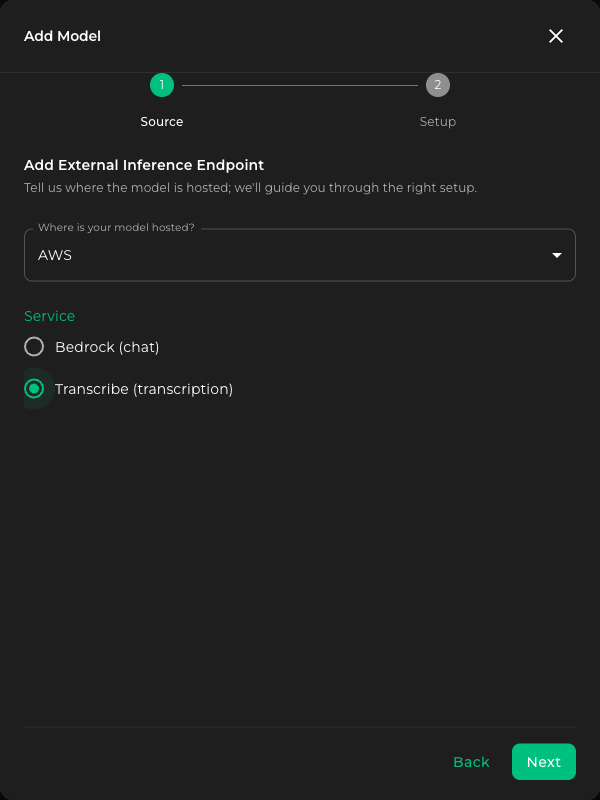
On the Source step, choose AWS under Where is your model hosted?, then choose Transcribe (transcription) under Service. Click Next.
-
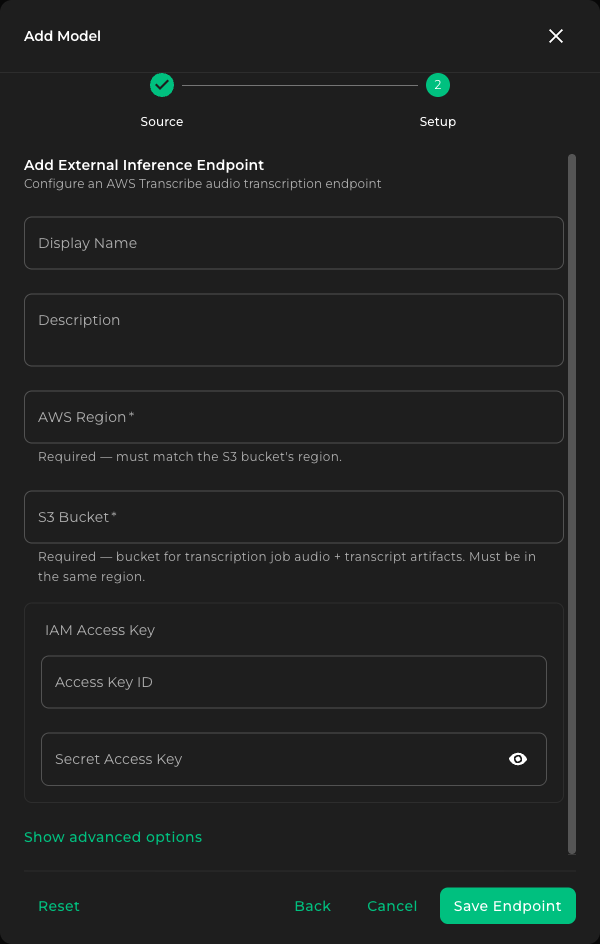
On the Setup step, fill in the form:
- Display Name — Friendly name shown in the Kamiwaza UI.
- Description (optional) — Free-form note for other operators.
- AWS Region — The region where audio will be processed (for example
us-east-1). Must match the S3 bucket's region. Required. - S3 Bucket — The bucket Kamiwaza will use to stage batch audio and transcript artifacts. Must be in the same region. Required.
- IAM Access Key — Paste the Access Key ID and Secret Access Key.
- Show advanced options (optional) — Reveals a Language field for setting a default language. Leave it unset to let Transcribe auto-detect the language on each batch request (see Supported Languages).
-
Click Save Endpoint.
-
Deploy the model from the Models list.
Use long-lived IAM credentials. Temporary or session credentials expire while a deployment is running and lead to silent authentication failures.
Credentials
Credentials registered through the form are encrypted on save and stored in the Kamiwaza secret catalog, keyed by AWS region. Catalog reuse across endpoints in the same region, rotation through the Edit form, and the five-minute propagation window are described in External endpoints overview.
The stored secret is JSON containing your long-lived AWS keys:
{
  "aws_access_key_id": "AKIA...",
  "aws_secret_access_key": "..."
}
If you've already registered an AWS Bedrock endpoint in the same region with IAM access-key auth, Kamiwaza recognizes the existing credential and offers Use existing credential during registration. Bedrock endpoints registered with the Bedrock API Key auth path store a bearer token, not AWS keys, and cannot be reused for Transcribe — Transcribe requires IAM access keys.
Rotate long-lived IAM credentials regularly. Treat the registered access key like any other long-lived AWS credential — rotate on the same cadence as your cloud key inventory and monitor
AccessKeyLastUsedin IAM. Rotated credentials propagate to running deployments through the Edit form within the engine credential cache window (~5 minutes).
API Usage
Transcribe Audio (Batch)
curl -X POST "https://<your-domain>/runtime/models/<deployment-id>/v1/audio/transcriptions" \
  -H "Authorization: Bearer $TOKEN" \
  -F "[email protected]" \
  -F "response_format=json"
Transcribe Audio (Streaming)
curl -X POST "https://<your-domain>/runtime/models/<deployment-id>/v1/audio/transcriptions" \
  -H "Authorization: Bearer $TOKEN" \
  -F "[email protected]" \
  -F "stream=true"
Streaming returns Server-Sent Events (SSE) with partial results.
Note: Streaming only supports
pcm,ogg, andflacformats. The format is auto-detected from the file extension. Streaming always uses the registered language (set via Show advanced options on the registration form); if none is registered it defaults toen-US. The per-requestlanguageparameter is ignored on streaming.
Request Parameters
| Parameter | Required | Description |
|---|---|---|
file | Yes | Audio file (multipart form-data) |
response_format | No | text, json (default), or verbose_json |
language | No | BCP-47 code. Overrides the registered language on batch requests; ignored on streaming requests, which always use the registered language (or en-US if none is registered). |
stream | No | true for streaming mode |
Response Formats
json (default)
{
  "text": "Hello, how are you today?"
}
text
Hello, how are you today?
verbose_json
{
  "task": "transcribe",
  "language": "en",
  "duration": 3.45,
  "text": "Hello, how are you today?",
  "segments": [
    { "id": 0, "start": 0.0, "end": 1.2, "text": "Hello," },
    { "id": 1, "start": 1.3, "end": 3.4, "text": "how are you today?" }
  ]
}
Batch vs Streaming
| Feature | Batch | Streaming |
|---|---|---|
| Audio formats | mp3, mp4, wav, flac, ogg, amr, webm | pcm, ogg, flac |
| Max duration | 15 minutes (Kamiwaza default job_timeout_seconds; AWS-side hard limit is 4 hours) | 5 minutes (300s, AWS-side limit) |
| Auto language detection | Yes | No (defaults to en-US) |
| Latency | Higher (job-based) | Real-time |
| Use case | Recorded audio | Live audio |
Supported Languages
AWS Transcribe supports 100+ languages for batch and 30+ for streaming.
Auto-Detect (Batch Only)
Set the Language field on the Setup form to Auto-detect to let AWS identify the spoken language automatically. This applies to batch mode only.
Note: Automatic language detection is only supported for batch mode. For streaming, set the Language field on the registration form — streaming uses that registered value (or defaults to
en-US) and ignores any per-requestlanguageparameter.
Common Language Codes
| Code | Language |
|---|---|
en-US | English (US) |
en-GB | English (UK) |
es-ES | Spanish (Spain) |
es-US | Spanish (US) |
fr-FR | French |
de-DE | German |
ja-JP | Japanese |
zh-CN | Chinese (Simplified) |
pt-BR | Portuguese (Brazil) |
ko-KR | Korean |
Cost Considerations
Check AWS pricing for current rates.
Troubleshooting
"Unsupported media format"
Batch supports: mp3, mp4, wav, flac, ogg, amr, webm, pcm.
Streaming supports: pcm, ogg, flac only.
"S3 access denied"
Verify the IAM policy attached to the registered access key includes s3:PutObject, s3:GetObject, and s3:DeleteObject on the configured S3 bucket.
"Region mismatch" or 401 / signature errors
Confirm the AWS Region on the registered endpoint matches the region your S3 bucket lives in. IAM access keys are global to the account, but Transcribe and S3 are regional services — a region mismatch between the registered endpoint and the bucket surfaces as a 401 or signature error.
Streaming timeout
- Audio chunks must arrive within 30 seconds.
- Total stream duration is limited to 5 minutes (AWS-side limit).
- Ensure audio data is sent promptly from the client.
Job timeout
Kamiwaza enforces a 15-minute (job_timeout_seconds = 900) ceiling on each batch job by default. AWS Transcribe itself supports up to 4 hours per job, but the Kamiwaza ceiling will fire first. The form does not currently expose this value, so longer audio must be split into shorter clips or transcribed via the AWS console directly.